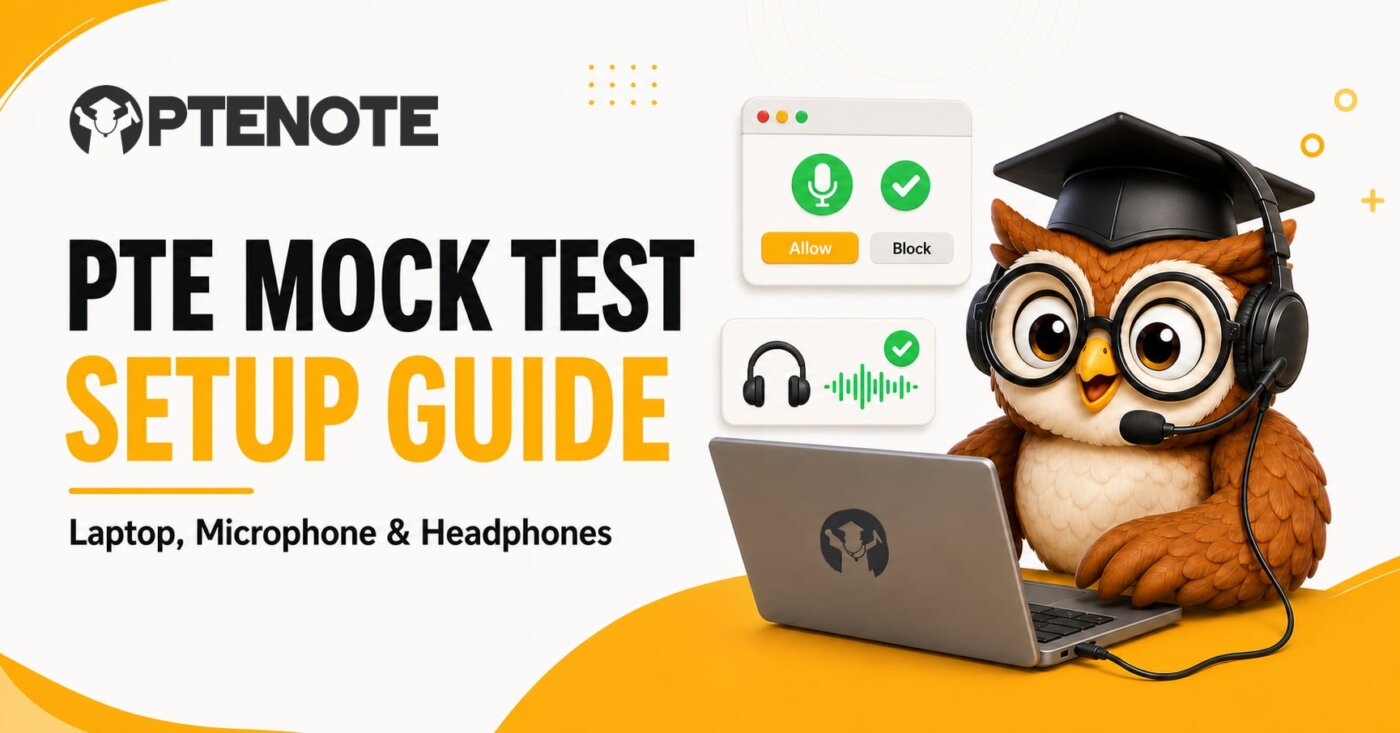
Key Takeaway: What Do You Need for a PTE Mock Test?
Use this setup:
- A Windows, macOS or Linux desktop or laptop.
- A stable internet connection.
- An updated web browser.
- A wired headset with a microphone, if available.
- A quiet room.
- A working keyboard.
- Enough free time to finish the complete mock without stopping.
Connect the headset before opening the mock-test page.
Allow the browser to use your microphone.
Select the correct microphone and headphones in your computer settings.
Record a short sample. Play it back. Check that your voice sounds clear and easy to hear.
Do not start the scored mock until that check works.
That is the short answer. Now let us set it up one part at a time.
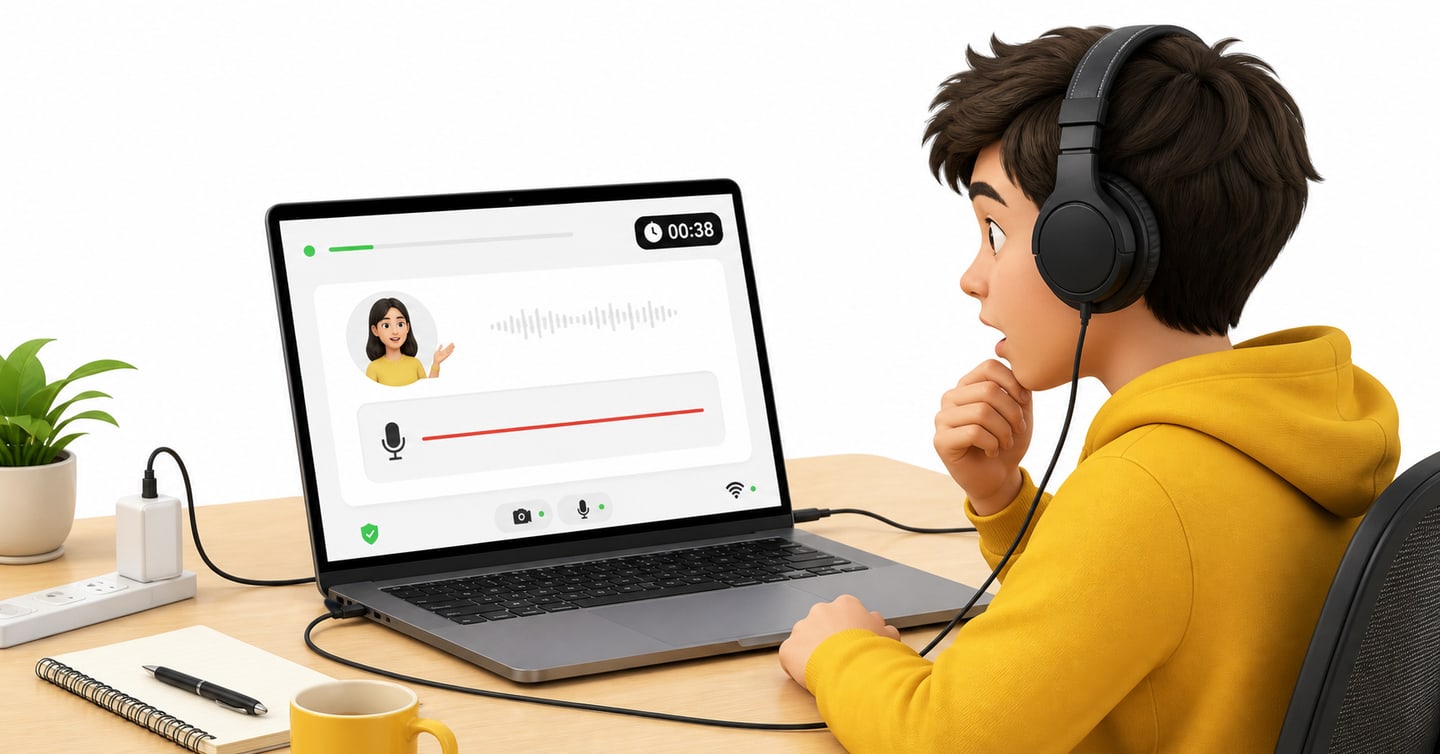
You open your PTE mock test.
The timer starts.
You begin speaking with confidence.
Then you notice that the microphone bar is not moving.
That is not the kind of surprise anyone needs during a scored mock.
A PTE mock test checks more than your answers. It also checks how well you work with a computer, timer, microphone and headphones. If your audio setup is poor, a good speaking response can sound too quiet, broken or unclear.
The good news is that you do not need an expensive studio.
You need:
- A desktop or laptop.
- A stable internet connection.
- A working microphone.
- Headphones.
- A quiet place.
- A few minutes to test everything before you begin.
That is all.
In this guide, we will set up each part together. We will also fix the most common problems, such as a blocked microphone, the wrong input device, low volume, background noise and Bluetooth disconnection.
The goal is simple: when you start your mock, you should think about your answer, not your settings.
Why Does Your PTE Mock-Test Setup Matter?
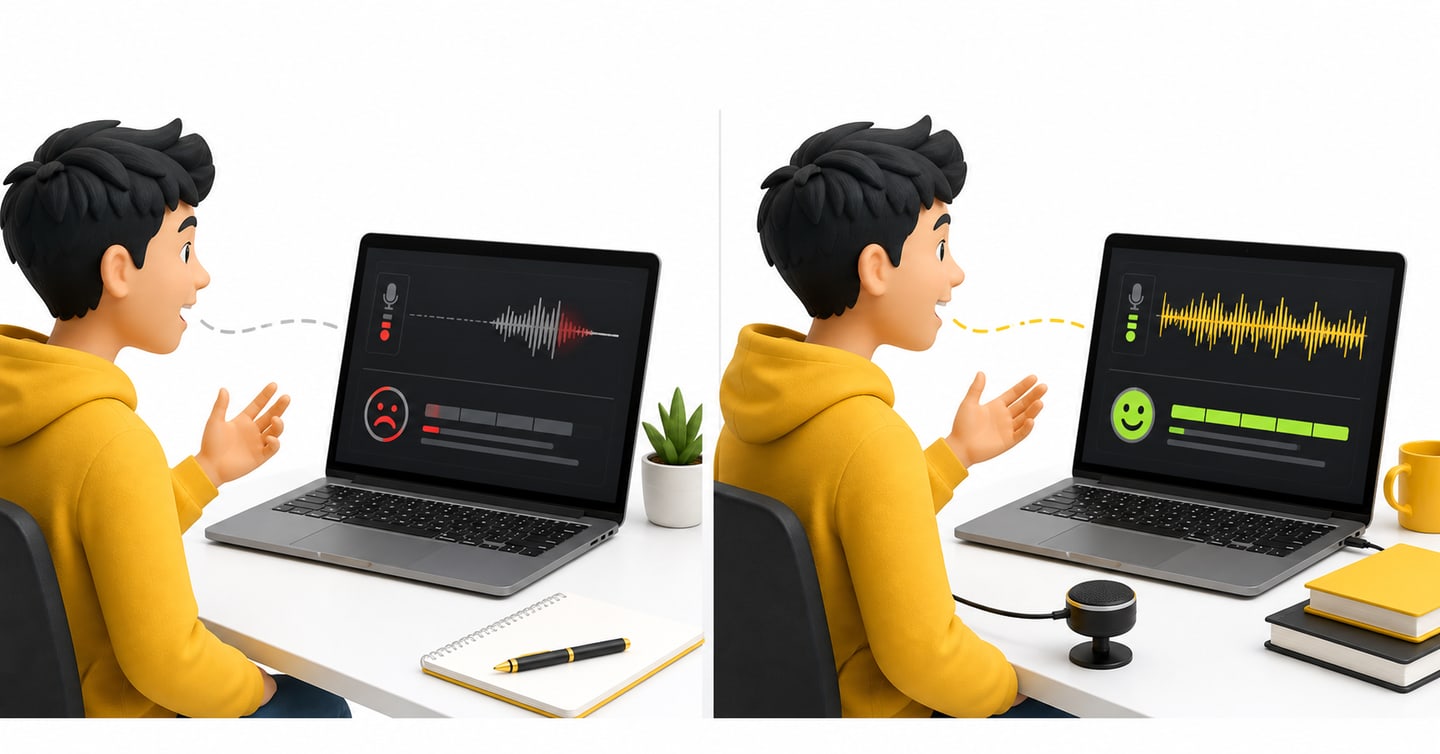
Your setup changes the quality of your practice.
Imagine that you give a strong speaking answer, but the microphone records only half of it. The score will not show your real performance.
Or imagine that your headphones are too quiet. You miss one word in a listening task, turn the volume up too late and lose focus on the next question.
These are equipment problems. They are not English problems.
A good setup helps you practise:
- Speaking at a steady volume.
- Keeping the microphone in one position.
- Listening without changing the volume again and again.
- Typing while the timer is running.
- Completing the mock without technical breaks.
- Staying focused for the full test.
It also makes your practice feel closer to a real computer-based test.
This does not mean your room must look like a test centre. It means your equipment should work before the timer begins.
Should You Use a Laptop or a Mobile Phone?
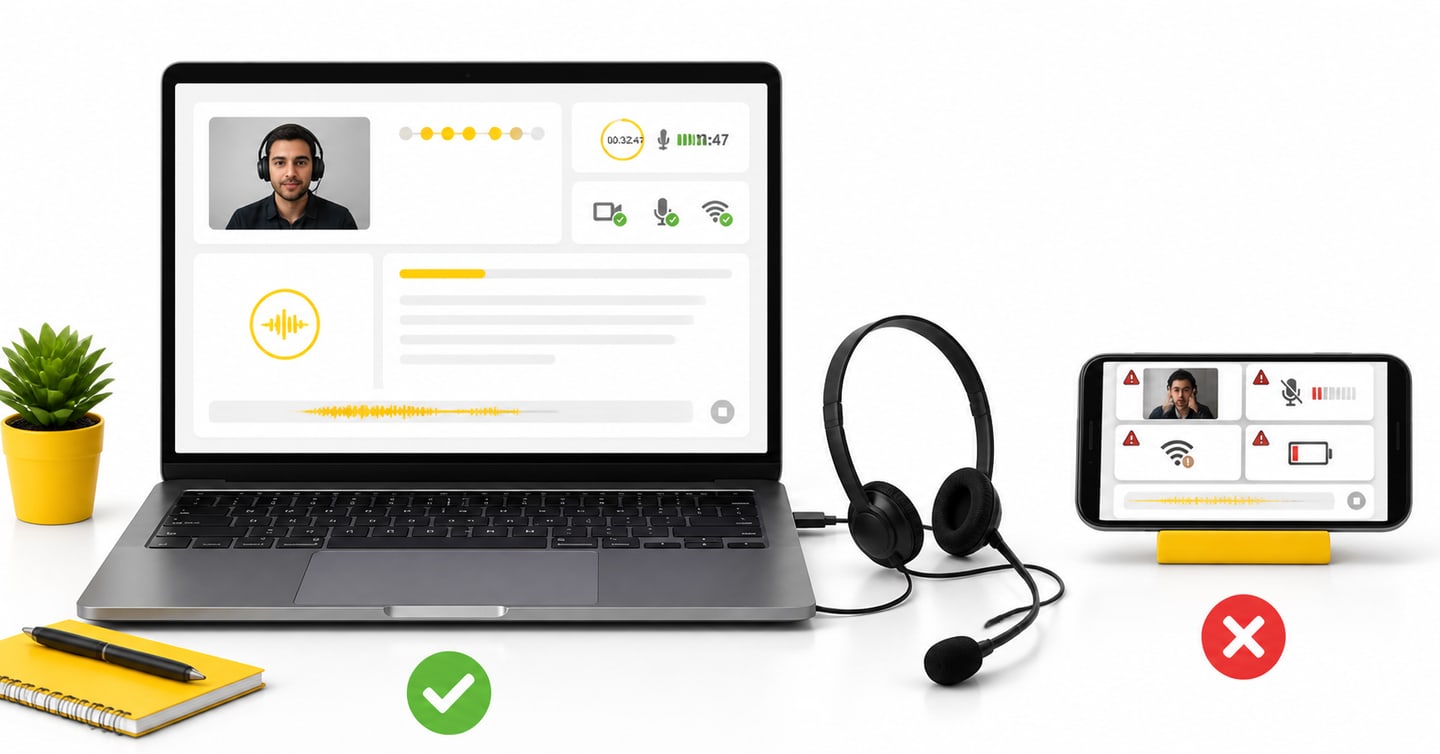
Use a desktop or laptop.
Our mock tests can be accessed on Windows, macOS and Linux. A computer gives you the screen space, keyboard and audio controls needed for full practice.
A mobile phone is not the right choice for a full PTE mock.
On a phone:
- The screen is small.
- Typing feels different.
- Browser controls can cover part of the test.
- Calls and notifications can interrupt you.
- The microphone and audio route can change without warning.
- You do not practise the computer skills used during the test.
You can use your phone to read tips or check a message from us. Use your laptop or desktop for the scored mock.
If you have a choice between a very old laptop and a stable desktop, use the device that runs smoothly and has the better internet connection. The brand does not matter. Reliable performance matters.
How Should You Prepare Your Laptop Before the Mock?
Give your laptop a small clean-up before you begin. Nothing dramatic. We are not asking you to rebuild the computer.
Charge it or connect the power cable
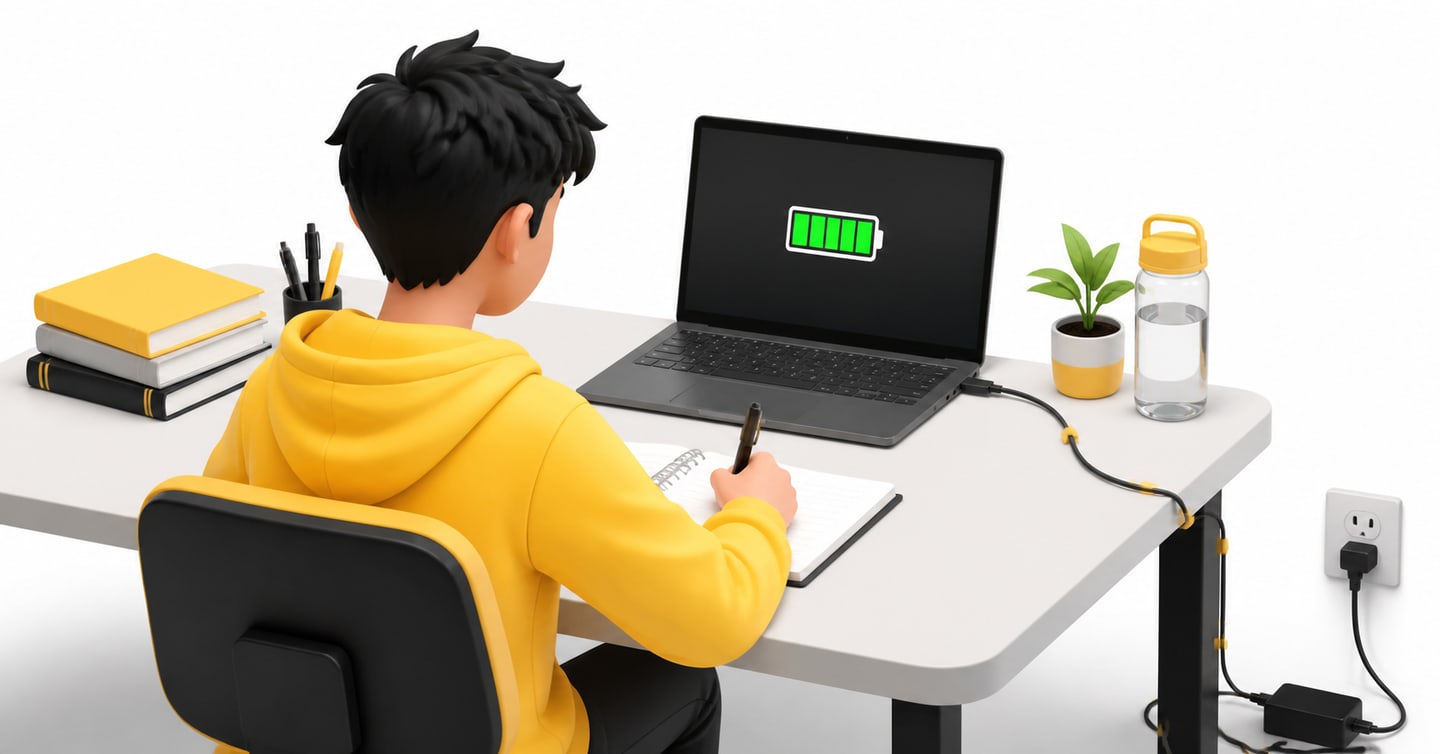
Do not depend on a low battery during a full mock.
Connect the charger before you start. Check that the charging symbol appears. Keep the cable where your feet cannot pull it out.
If you use a desktop, make sure the power cable and monitor cable are secure.
Restart the computer
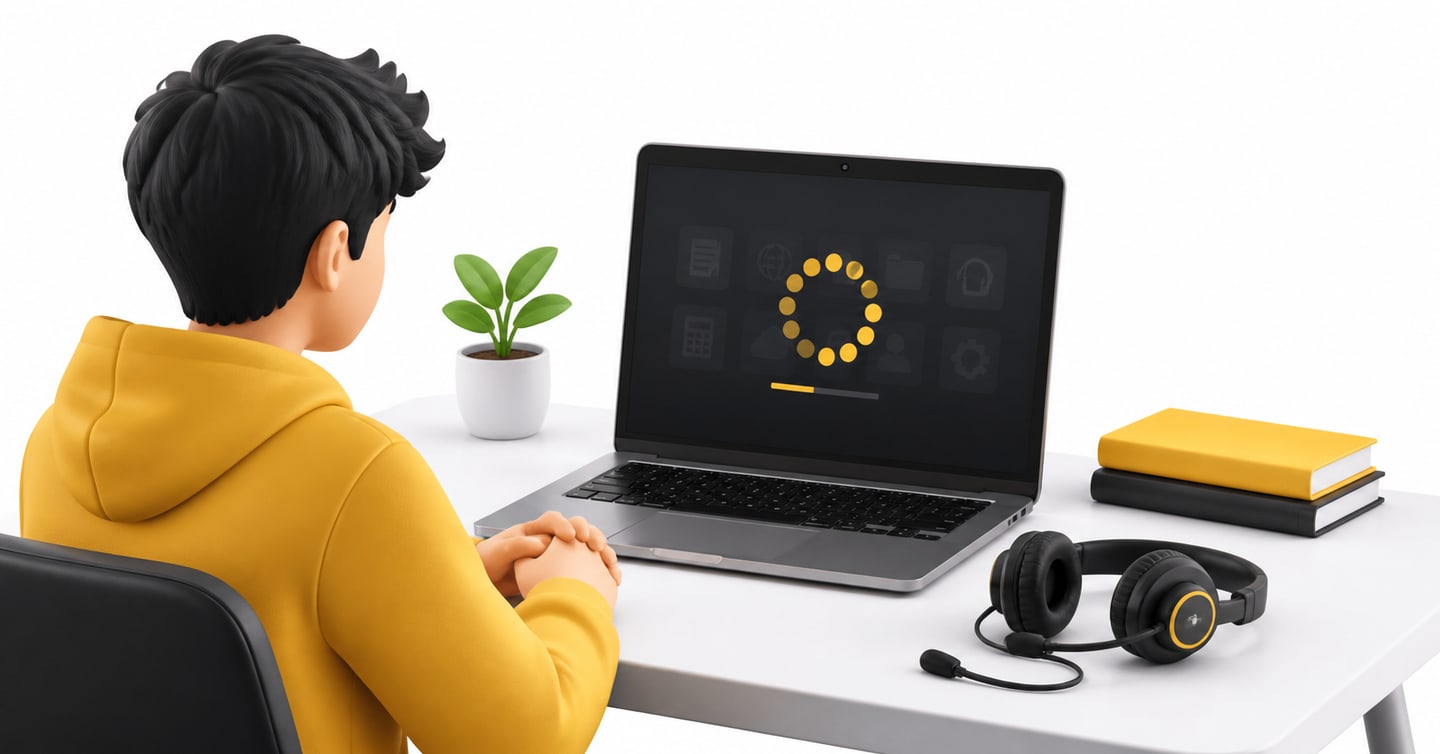
A restart closes old background work and gives the computer a fresh start.
Restart before the mock if the laptop has been running for several days, feels slow or has recently installed an update.
Do not start a large system update five minutes before your mock. Complete important updates earlier, restart and then test the device.
Close apps you do not need
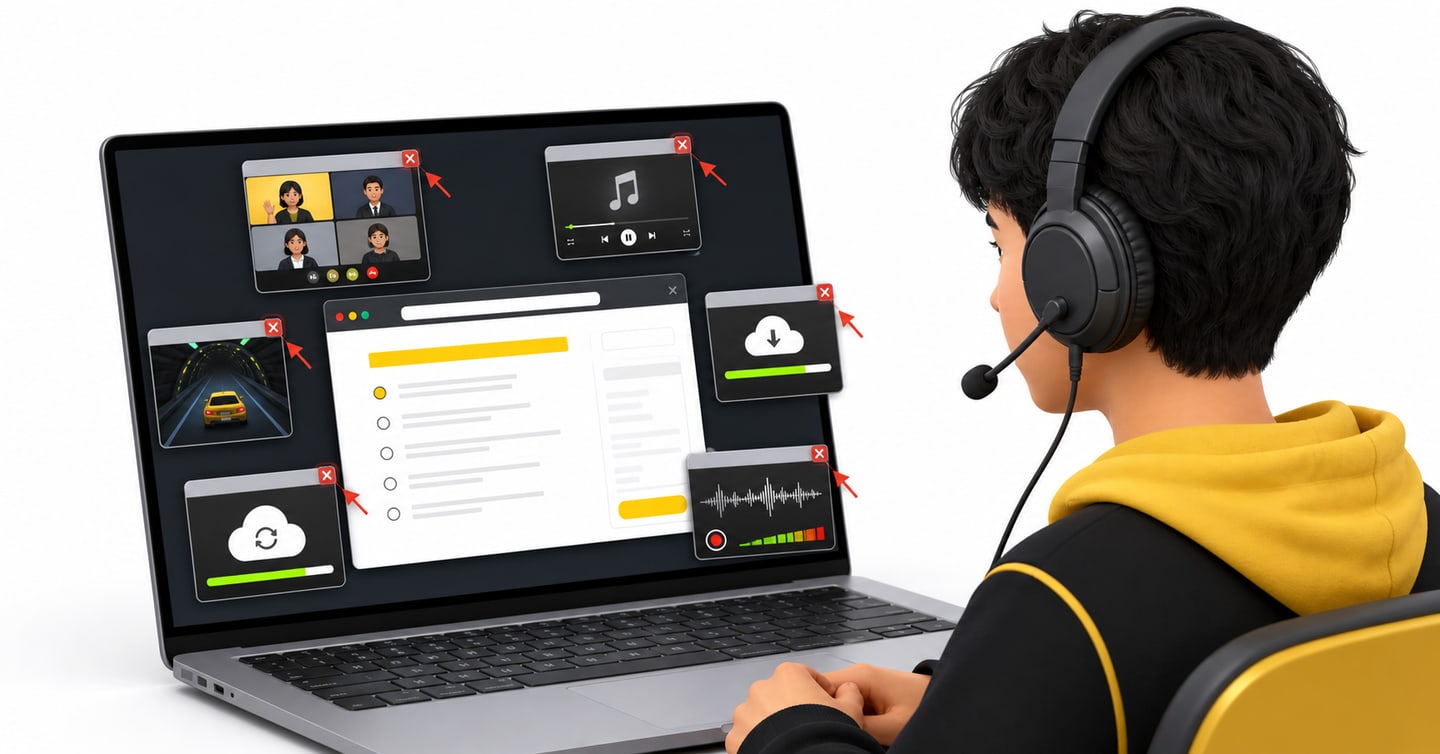
Close:
- Video calls.
- Music apps.
- Games.
- Large downloads.
- Cloud backup or file-sync work.
- Extra browser windows.
- Recording software you are not using.
These apps can use memory, internet or the microphone.
One common problem is that another app keeps control of the microphone. You open the mock and the browser cannot hear you. Closing meeting and recording apps helps prevent that.
Stop notifications
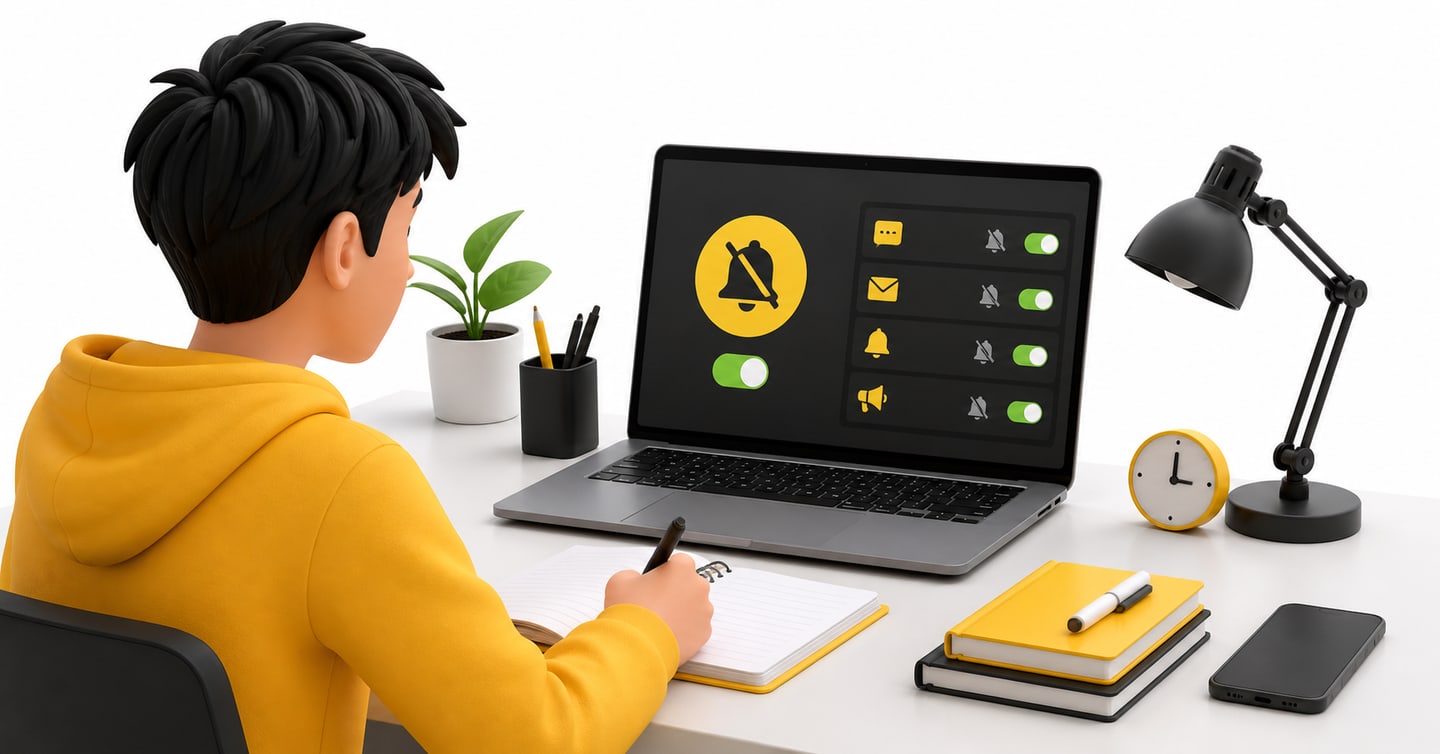
Turn on Do Not Disturb or Focus mode.
Also silence your phone and move it away from the keyboard. A message popping up during a listening task is not helpful, even when the message says, “All the best.”
Check your keyboard
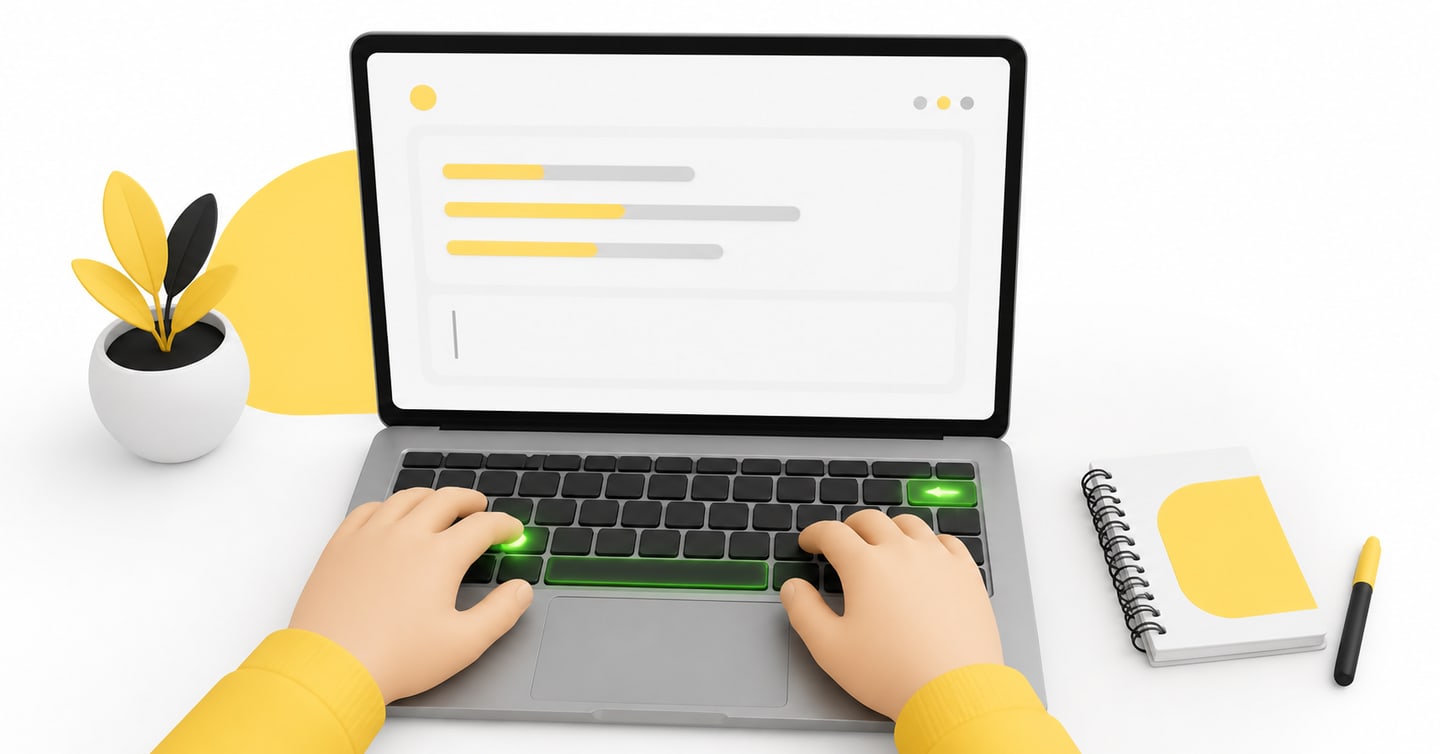
Open a blank document and type a few lines.
Make sure:
- Every key works.
- The space bar works.
- Backspace works.
- The keyboard language is correct.
- Caps Lock is not stuck.
You do not need a special keyboard. You need one that works without surprises.
What Kind of Headset Should You Use?
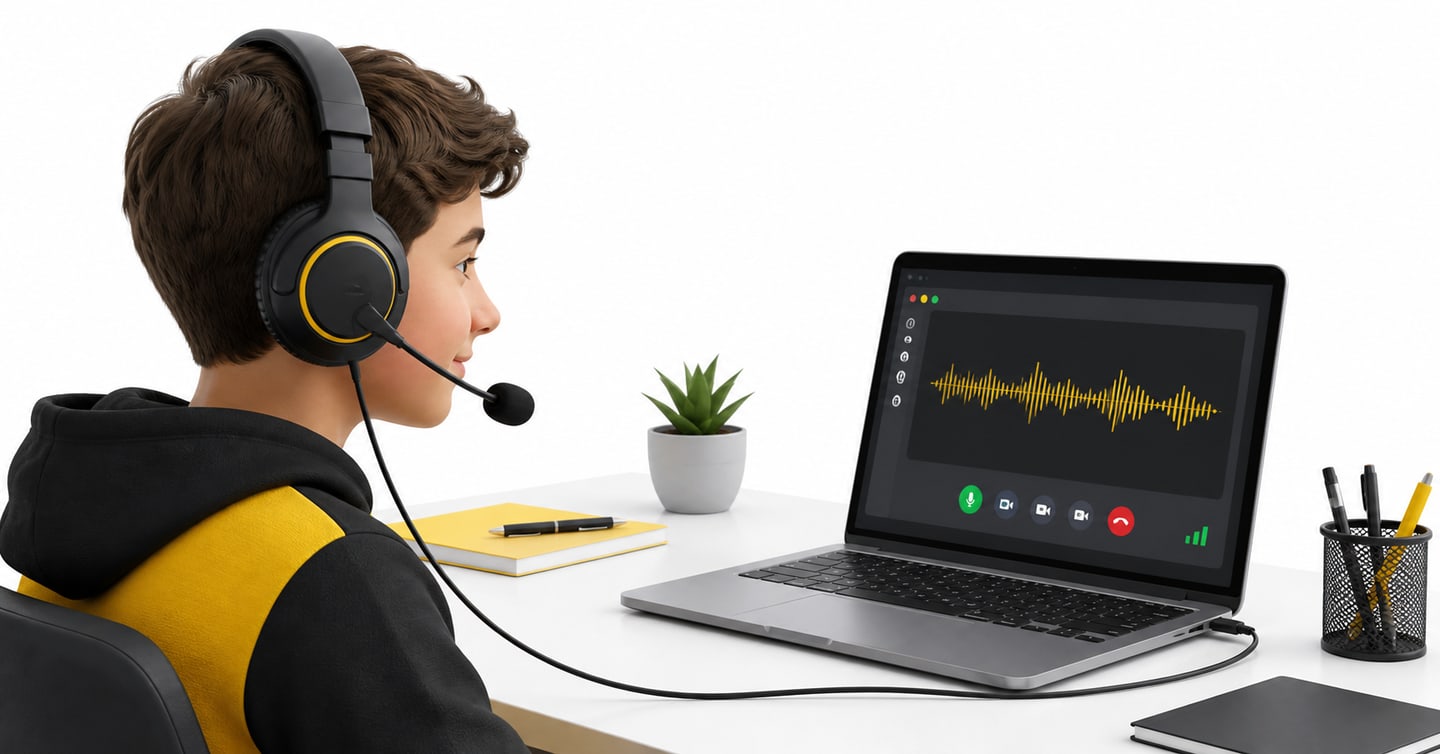
A wired over-ear headset with a microphone is the safest choice for a scored practice test.
“Wired” means the headset connects through a USB cable or a 3.5 mm audio plug.
“Over-ear” means the headphones sit around or over your ears.
A headset microphone is often called a boom microphone. It is the small microphone arm that sits near your mouth.
Pearson’s current scored practice-test guidance recommends a wired over-ear headset with the microphone placed beside the mouth. It also warns that Bluetooth audio can disconnect or stop recording during a scored practice test.
You do not need a particular brand.
You do not need a gaming headset with lights.
You need a headset that:
- Fits comfortably.
- Has a working microphone.
- Stays connected.
- Records a clear voice.
- Plays audio clearly in both ears.
Can you use Bluetooth headphones?
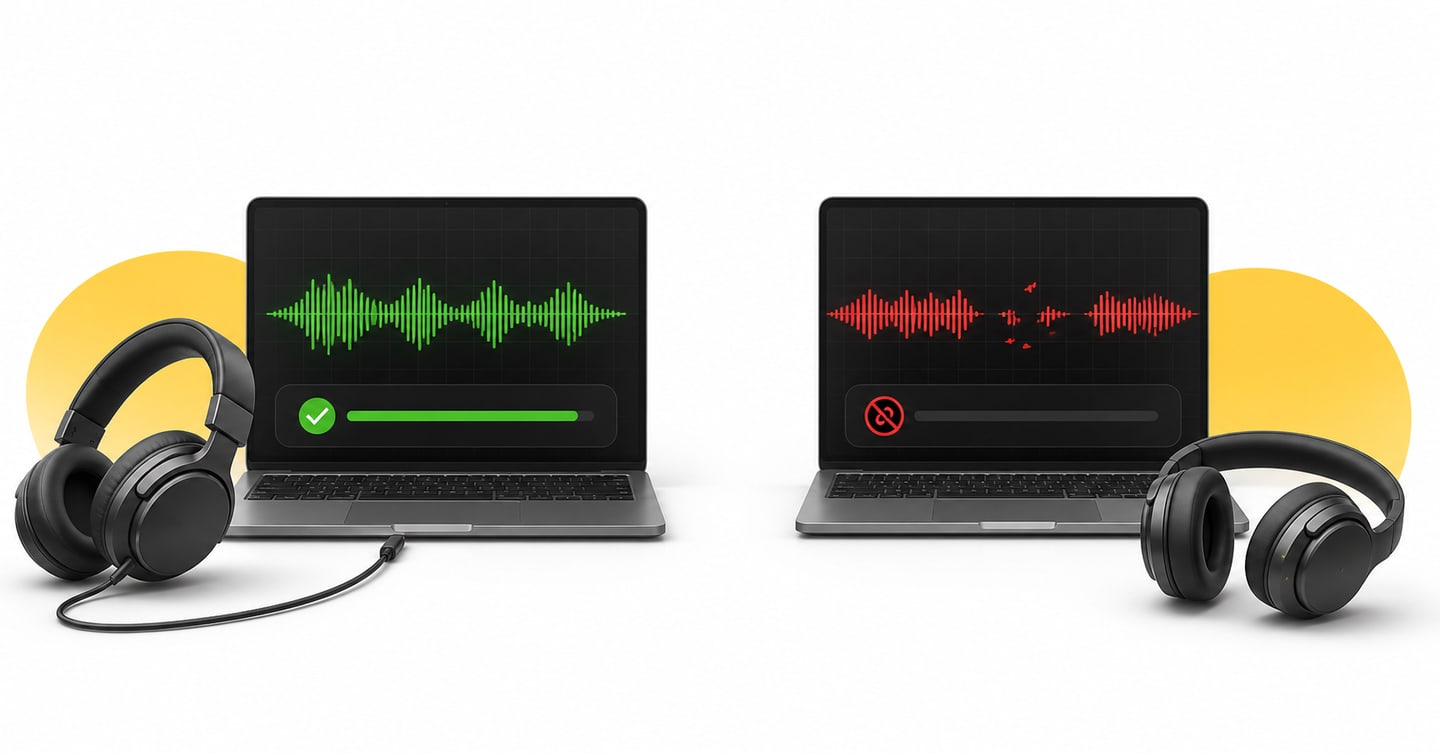
Do not use Bluetooth for an important scored mock when you have a working wired option.
Bluetooth can look connected while the computer uses another microphone. It can also change audio mode, lose connection or stop recording during the test.
If Bluetooth is your only option, test it carefully before using a mock. Record for more than a few seconds. Move through a longer audio check and make sure it stays connected.
Do not begin the mock after testing Bluetooth for only one word.
Can you use the laptop microphone?
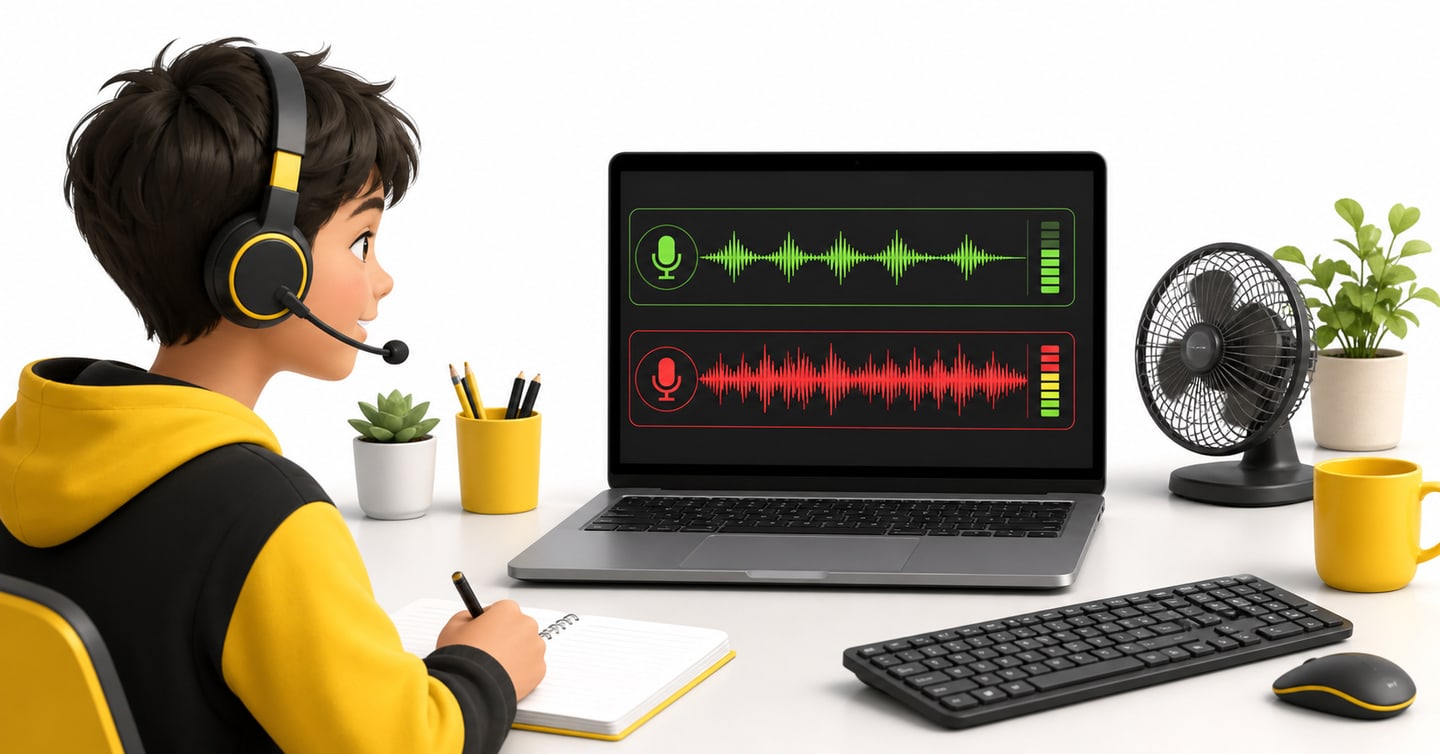
A laptop microphone can record sound, but it also records more of the room.
It can pick up:
- Keyboard noise.
- Fan noise.
- Echo.
- People speaking nearby.
- Movement around the laptop.
Use a wired headset microphone when you have one.
If you must use the laptop microphone, sit close enough for a clear recording and test it first. Keep the laptop in one position. Do not lean far away while speaking.
Where Should You Place the Microphone?
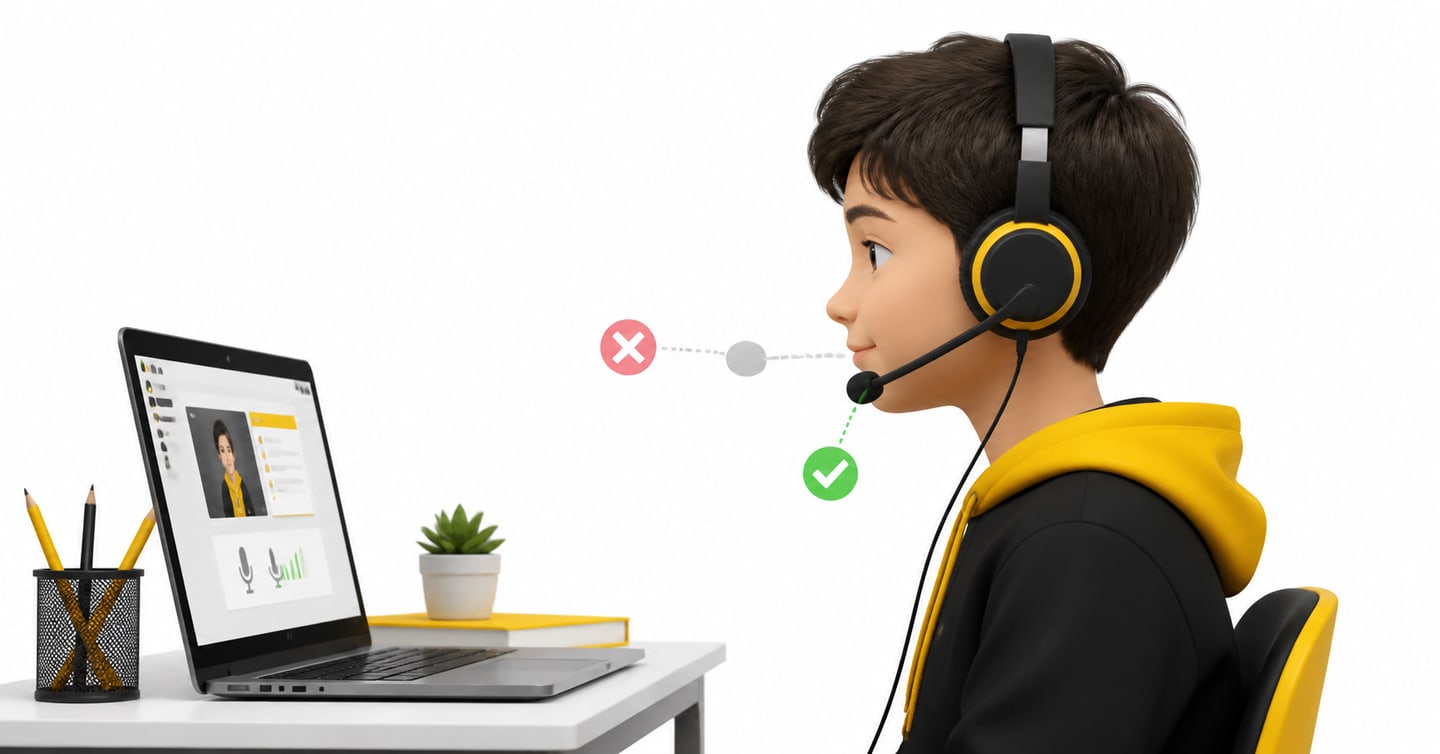
Place the microphone beside your mouth, not directly in front of it.
Keep a small gap between your mouth and the microphone. The exact distance depends on the headset, so use the test recording to find the clearest position.
Why not directly in front?
Because air from sounds such as “p” and “b” can hit the microphone and create a loud burst.
Use this simple position:
- Put on the headset.
- Bring the microphone arm near one corner of your mouth.
- Keep it slightly below or beside your lips.
- Speak in your normal clear voice.
- Record and listen.
Do not hold the microphone with your hand during every answer.
Do not keep moving it.
Do not touch the cable while speaking.
Each touch can create noise in the recording.
Once you find a clear position, leave it there.
How Loud Should You Speak?
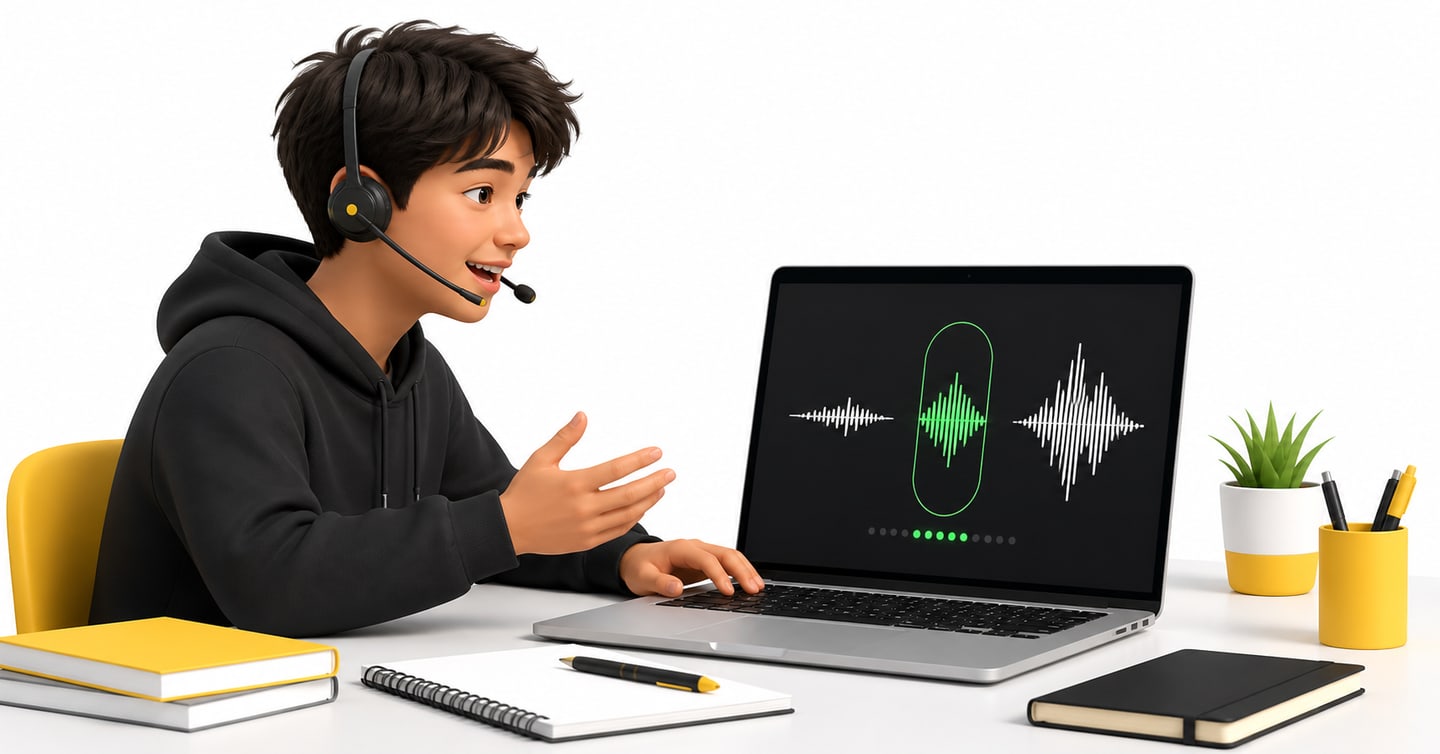
Speak clearly at a natural volume.
Do not whisper.
Do not shout.
Imagine that you are speaking to one person sitting across a table.
During your sound check, listen for three things:
Is every word easy to hear?
If the voice is too quiet, move the microphone a little closer or increase the input level in your computer settings.
Does the recording sound broken or harsh?
If loud words sound rough, move the microphone slightly away or lower the input level.
Can you hear more room noise than voice?
Move to a quieter place. Bring the microphone closer to the side of your mouth. Reduce fan or television noise.
Your voice does not need to sound like a radio presenter.
It needs to be clear, steady and complete.
How Do You Check the Microphone on Windows?
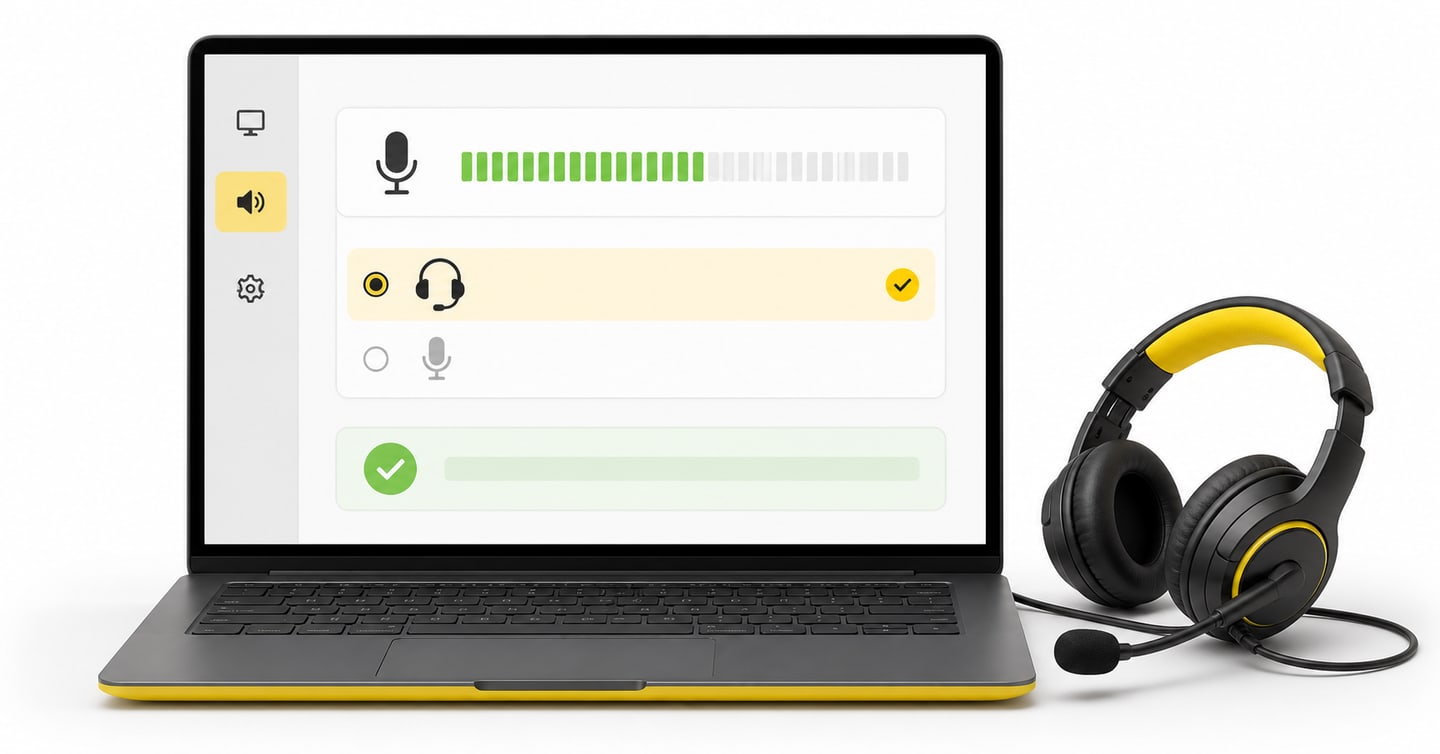
The exact button names can look slightly different across Windows versions. The basic path is simple.
- Open Settings.
- Open System.
- Select Sound.
- Find the Input section.
- Select the microphone connected to your headset.
- Speak and watch the input level move.
If you see several microphones, do not guess.
You might see:
- The laptop microphone.
- A USB headset.
- A webcam microphone.
- A Bluetooth microphone.
Select the headset you plan to use.
Then check permission:
- Open Settings.
- Open Privacy & security.
- Open Microphone.
- Turn on microphone access.
- Allow desktop apps or your browser to use it.
After changing a setting, close and reopen the browser.
Record another sample. Do not trust the moving level alone. Listening to the sample tells you whether the recording is actually clear.
How Do You Check the Microphone on macOS?
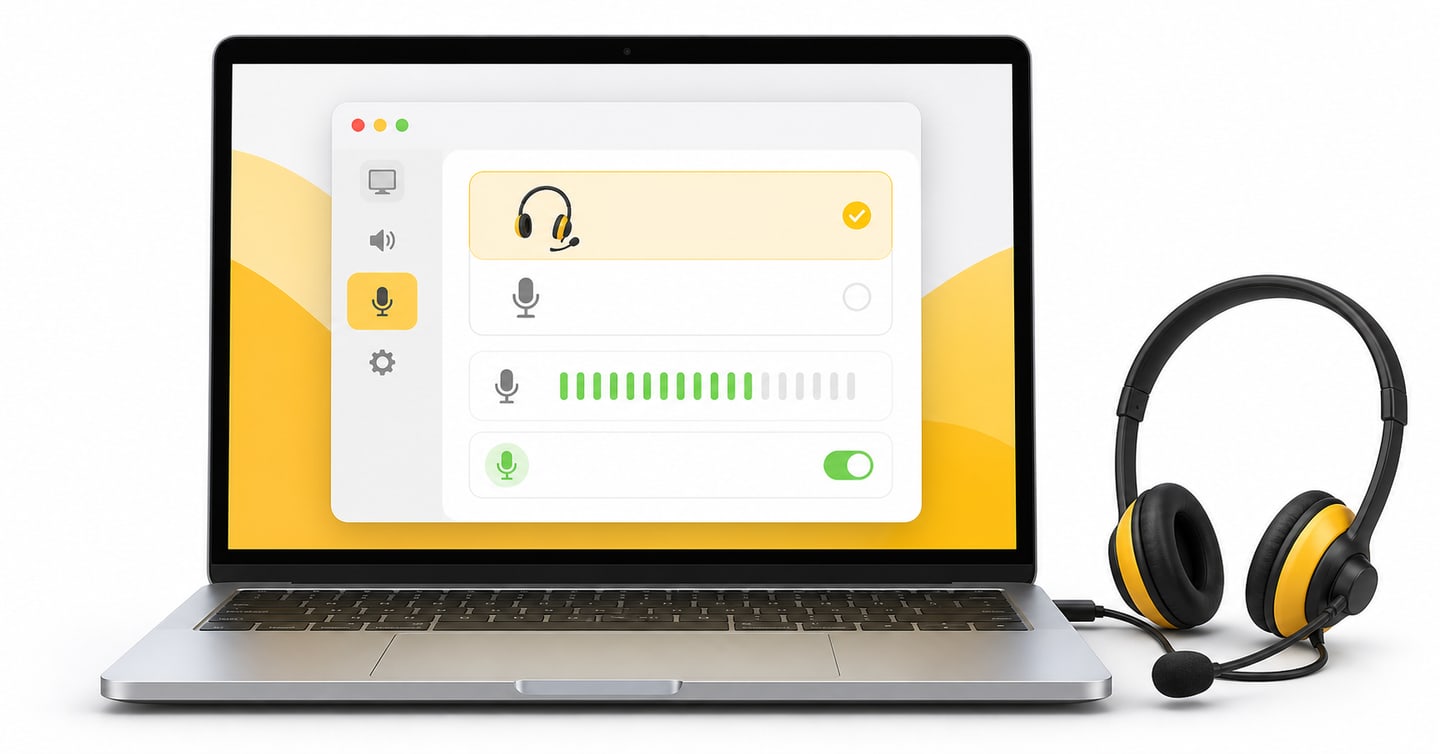
Use these steps:
- Open System Settings.
- Select Sound.
- Open the Input section.
- Select your wired headset microphone.
- Speak and watch the input level.
Then check permission:
- Open System Settings.
- Select Privacy & Security.
- Select Microphone.
- Allow your browser to use the microphone.
If you changed the permission while the browser was open, close the browser and open it again.
Mac computers can remember an older microphone. Always check the selected input after connecting a new headset.
How Do You Check Audio on Linux?
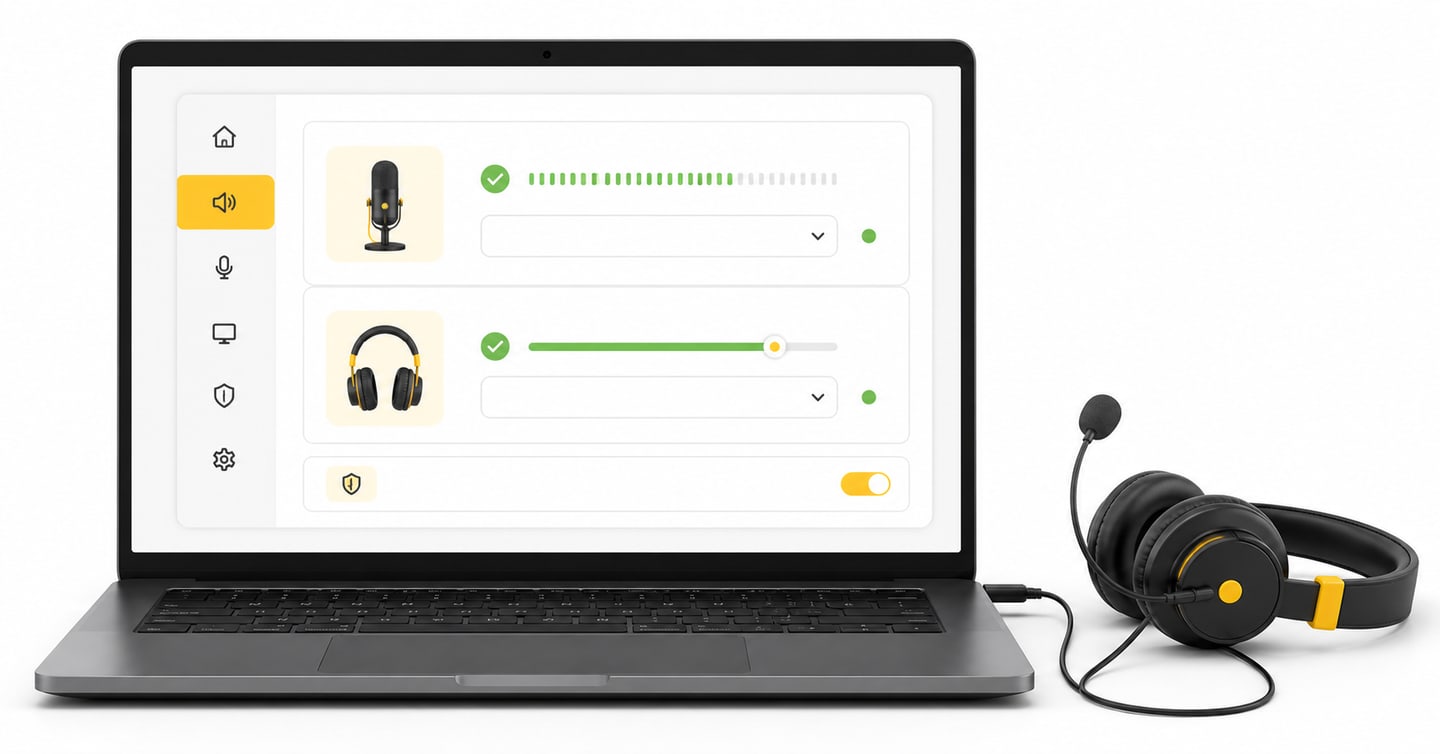
Linux menus depend on the version you use, but the same idea applies.
- Open Settings.
- Open Sound.
- Find the input device.
- Select the headset microphone.
- Speak and check the input level.
- Select the headset as the output device.
Then open the browser and allow microphone access for the mock-test site.
If your Linux system shows several devices with similar names, unplug the headset and connect it again. The device that disappears and returns is normally the one you need.
How Do You Allow Microphone Access in Chrome?
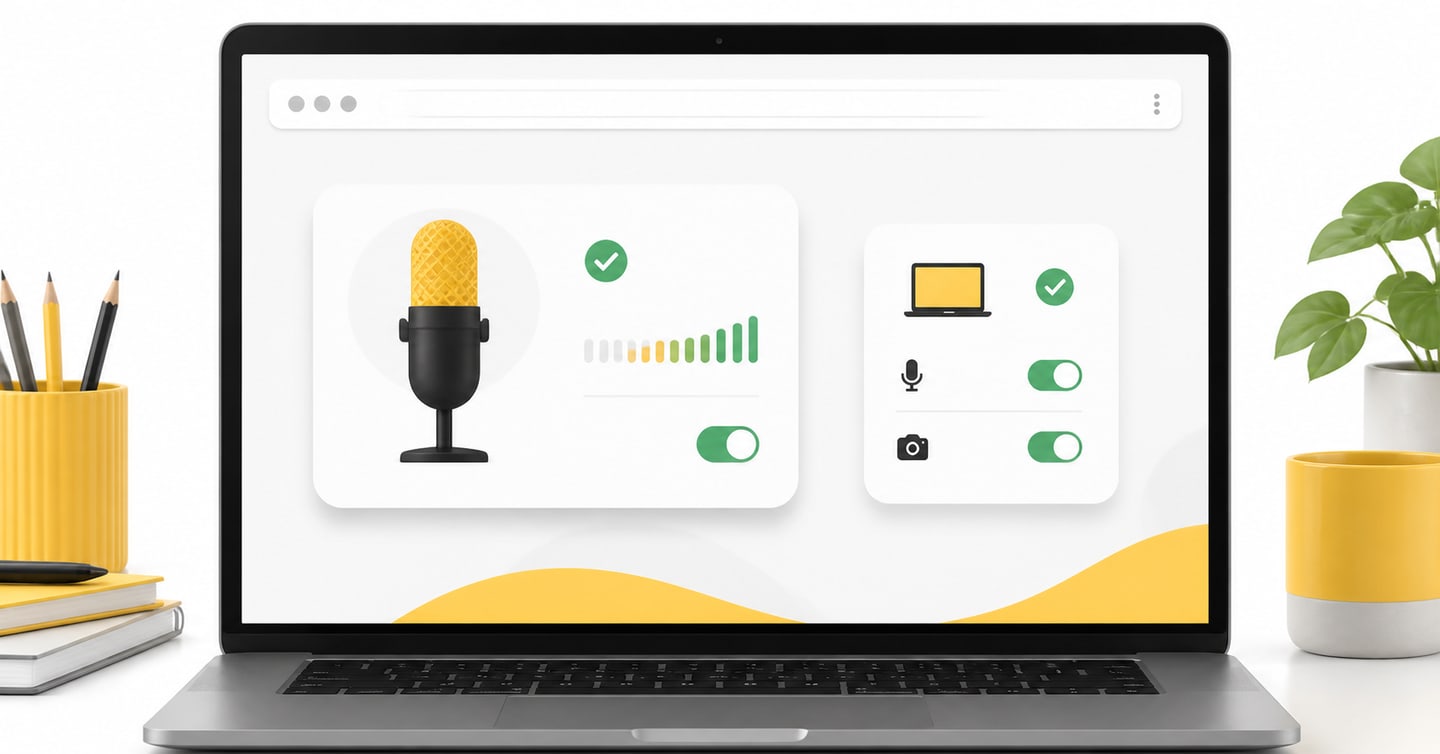
When the mock-test site asks to use your microphone, select Allow.
If you selected Block earlier, Chrome remembers that choice. The microphone will not work until you change it.
Use these steps:
- Open the mock-test page.
- Select the site information icon beside the web address.
- Find Microphone.
- Change it to Allow.
- Reload the page.
You can also open:
Chrome Settings > Privacy and security > Site settings > Microphone
Choose the correct default microphone and check that the mock-test site is not in the blocked list.
Google’s current Chrome microphone guide also explains how to change site permission and choose the default microphone.
Remember that there are two permission levels:
- Your computer must allow the browser to use the microphone.
- Your browser must allow the website to use the microphone.
If either one is blocked, the mock cannot record you.
How Should You Set Up Your Headphone Sound?
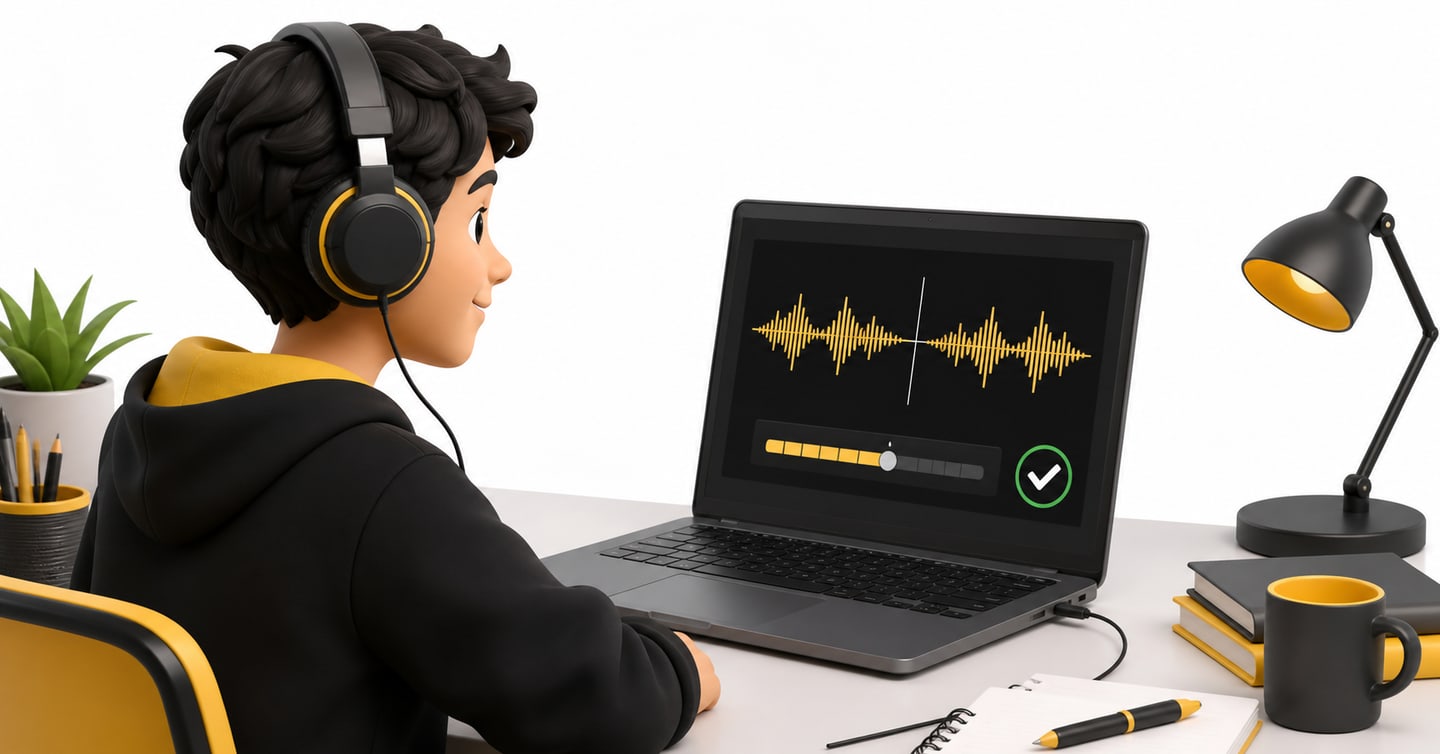
Your headphones are the output device. They play the audio you need to hear.
Connect them before opening the mock-test page.
Then:
- Open your computer’s sound settings.
- Select the wired headset as the output device.
- Play a short audio sample.
- Check that sound comes through both sides.
- Set a comfortable volume.
Do not set the volume at the highest level.
Very loud sound can feel uncomfortable and make it harder to focus. Very low sound can make you miss small words.
Choose a level that lets you hear speech clearly without strain.
Once the mock begins, avoid changing devices. Do not unplug the headset to test the speakers. Do not switch from wired audio to Bluetooth halfway through.
Keep one working setup from start to finish.
How Do You Test the Complete Audio Setup?
Do not test the microphone and headphones as separate objects only. Test the complete path.
Your voice must travel:
Your mouth > microphone > computer > browser > mock-test platform
The question audio must travel:
Mock-test platform > browser > computer > headphones
Use this five-minute check:
Step 1: Connect the headset
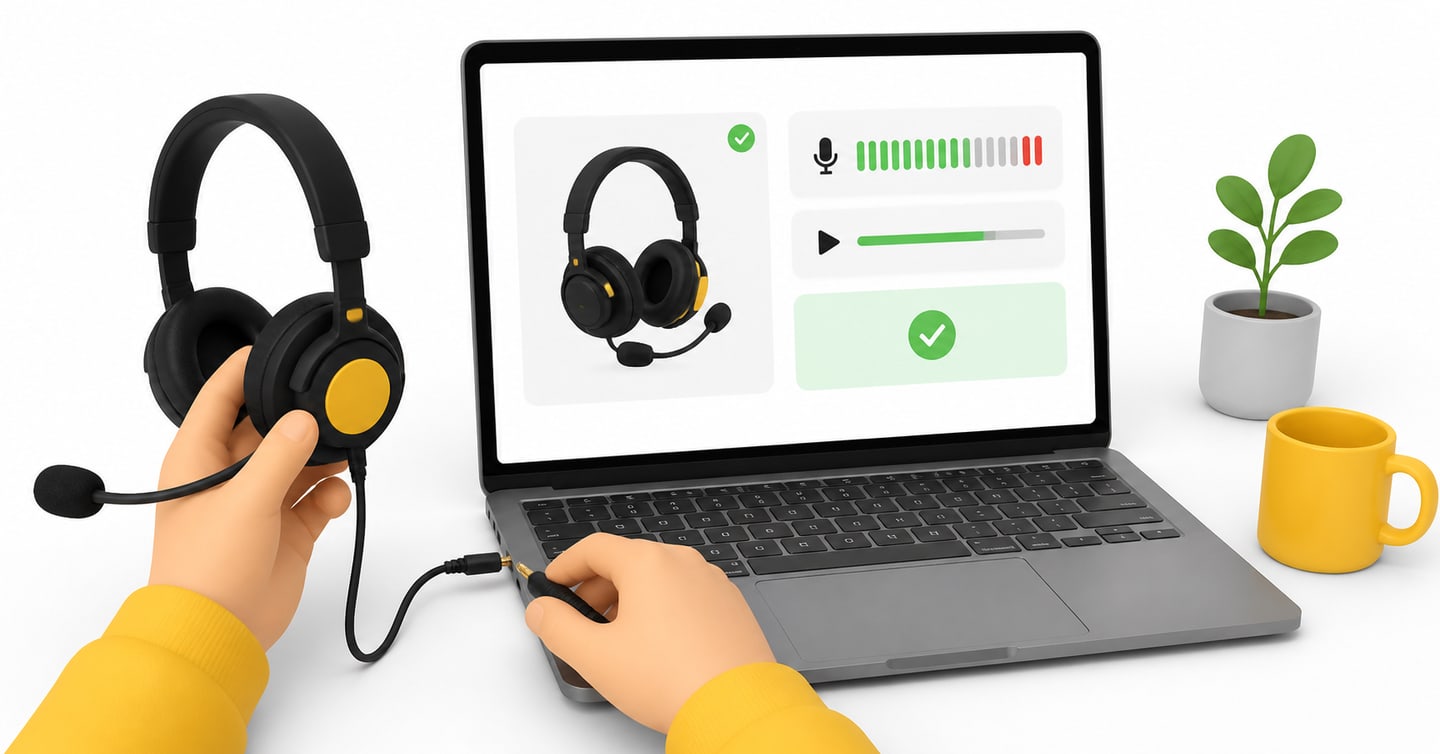
Connect it before opening the browser.
If it has a mute switch, make sure mute is off.
Step 2: Select the input and output
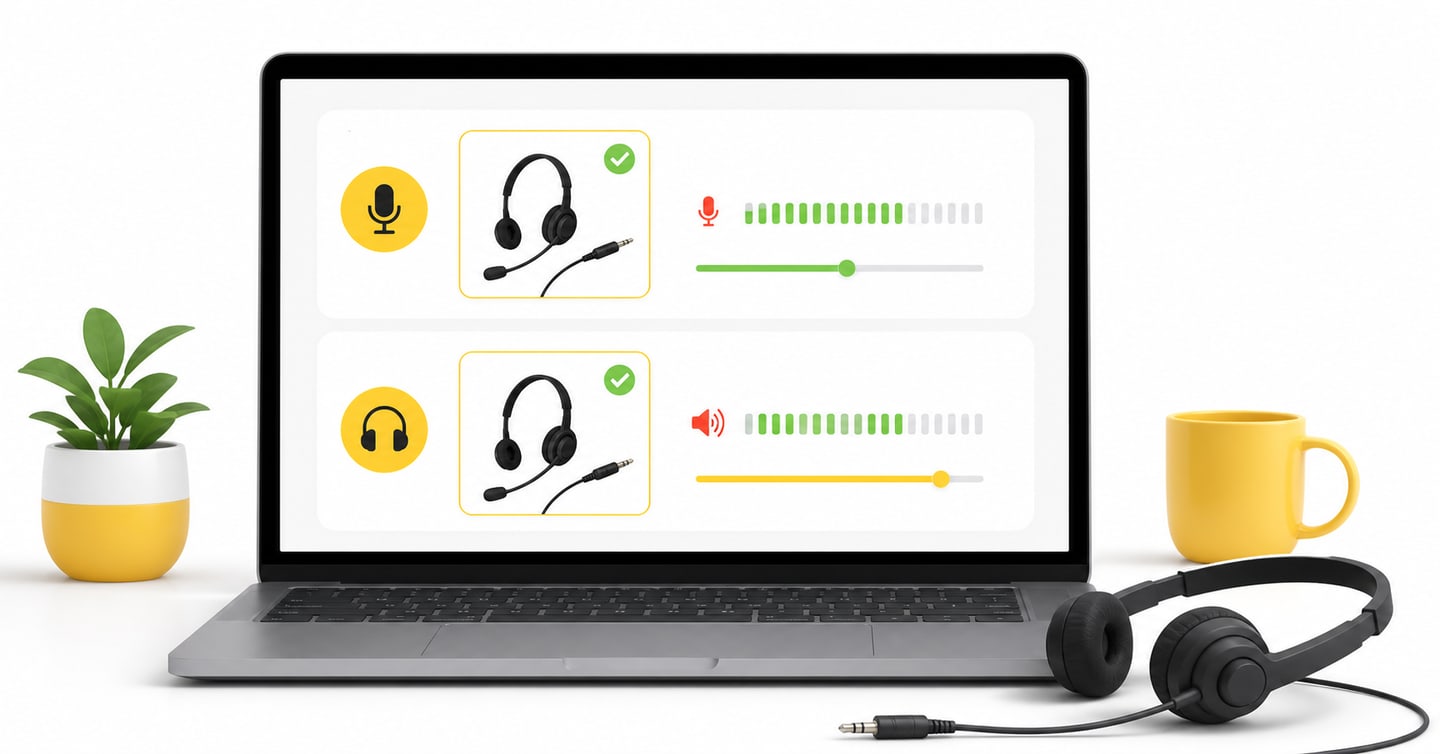
Choose the headset microphone as input.
Choose the headset headphones as output.
Step 3: Allow browser permission
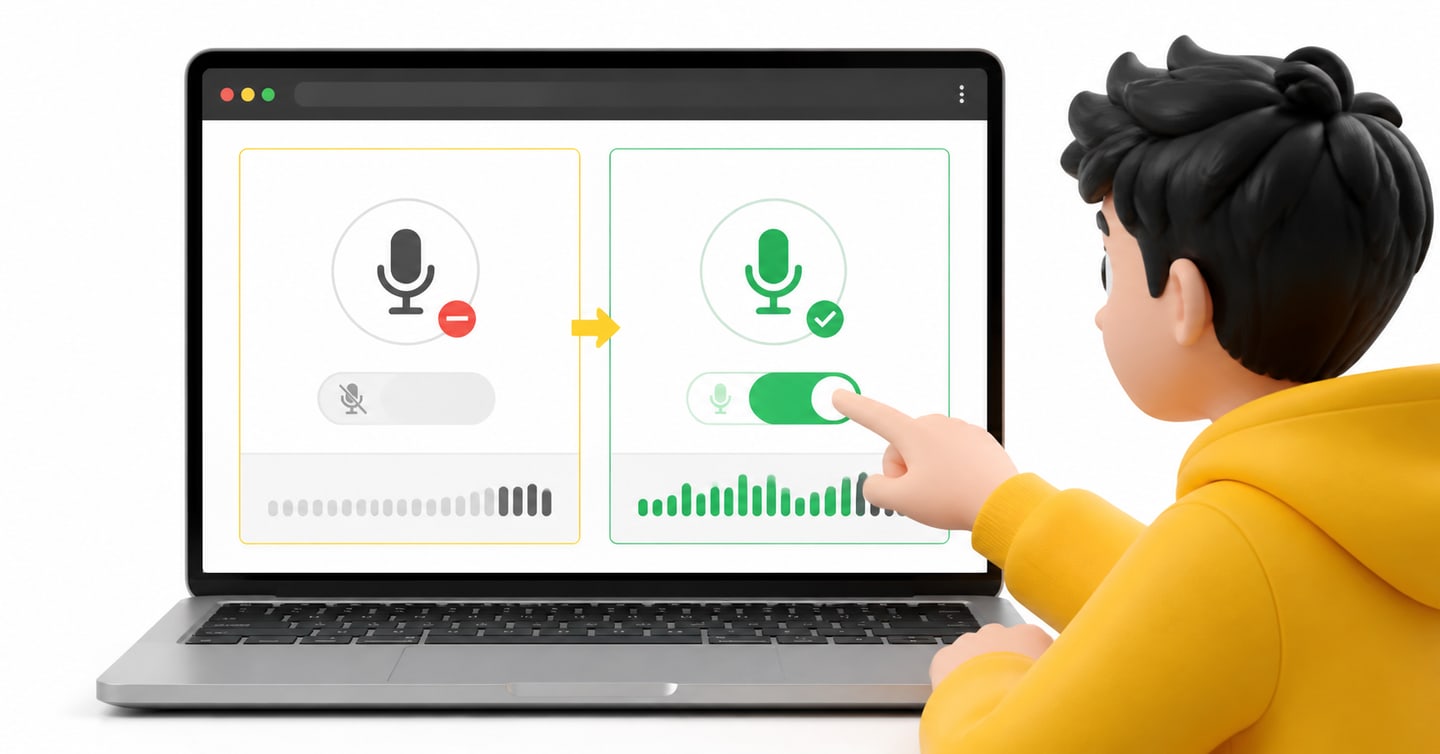
Open the mock platform and allow microphone access.
If the site shows a microphone check, complete it before starting the scored mock.
Step 4: Record a full sentence
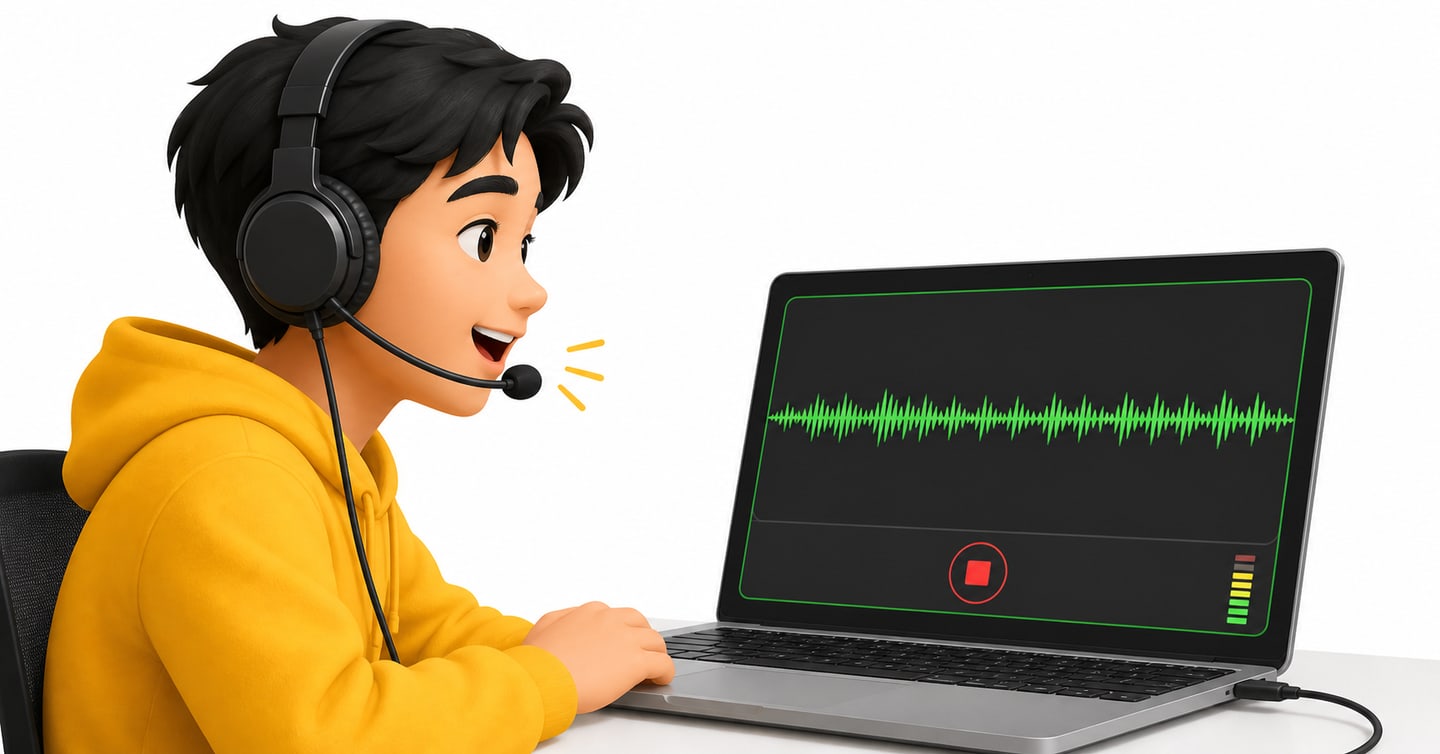
Say:
“I am testing my microphone before starting my PTE mock test.”
Do not say only “hello.” A full sentence helps you hear changes in volume and clarity.
Step 5: Play the recording
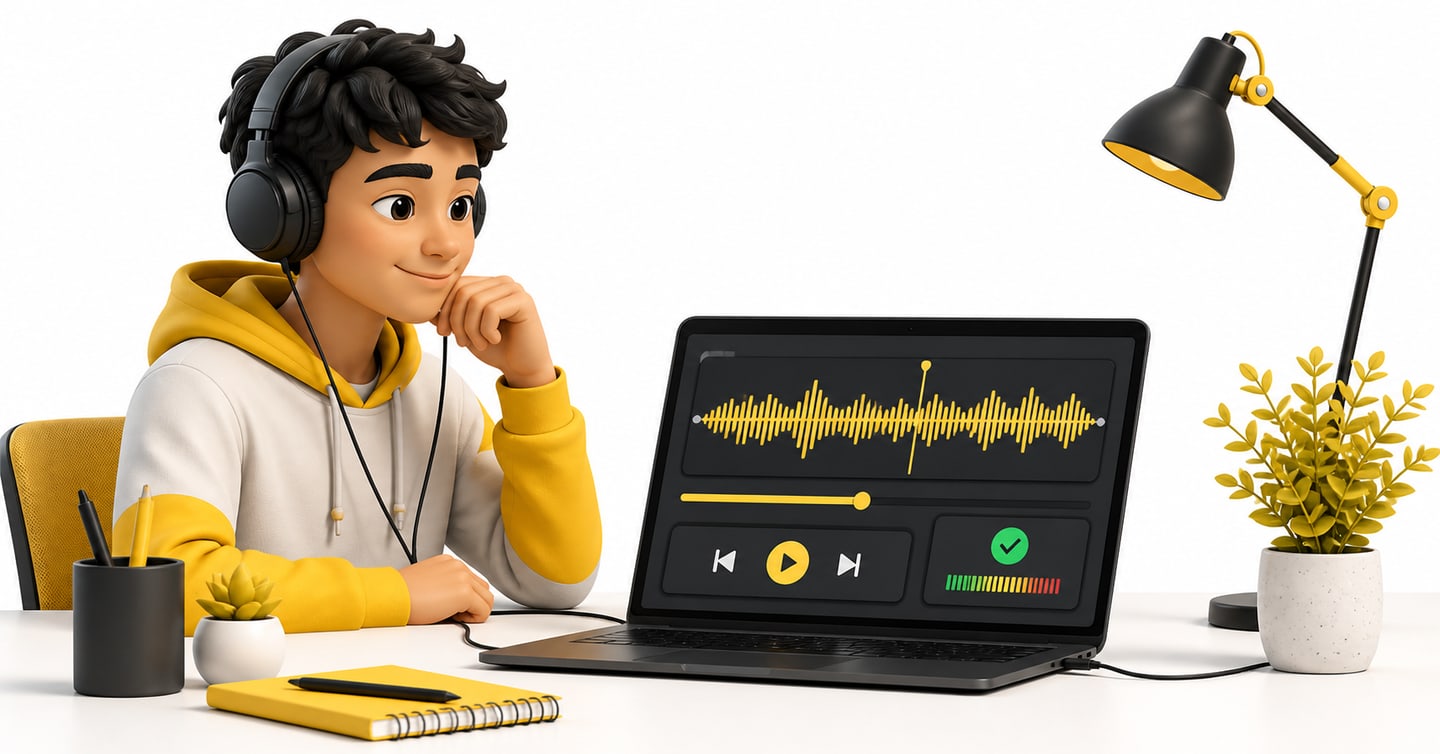
Ask:
- Can I hear every word?
- Is my voice loud enough?
- Is there echo?
- Is there fan or keyboard noise?
- Does the recording stop in the middle?
If the answer is clear, you are ready.
If not, fix the problem before using a scored attempt.
That last point matters because a completed PTENOTE mock test cannot be retaken. Use the setup check first, then begin the scored mock when your audio works.
What Is the Best Room for a PTE Mock?
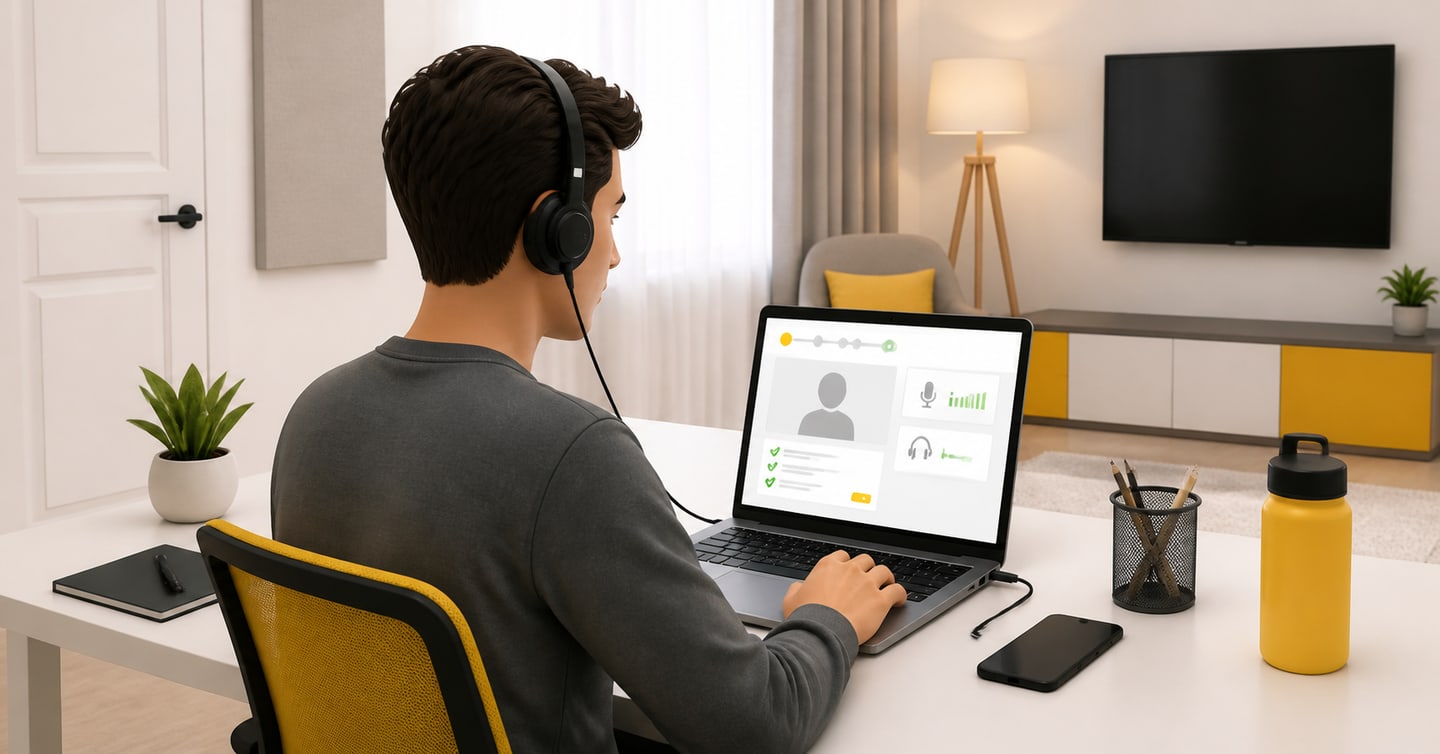
Choose the quietest place available.
You do not need complete silence. You need control over the noise around you.
Before starting:
- Close the door.
- Tell people that you are taking a full mock.
- Turn off the television.
- Move away from a loud fan.
- Silence your phone.
- Keep pets outside the room if they interrupt you.
- Avoid a room with strong echo.
Soft items such as curtains, a bed, cushions or a carpet can reduce echo. An empty room with hard walls can make your voice sound far away.
Sit at a desk or table.
Keep:
- The screen at a comfortable height.
- The keyboard directly in front of you.
- The mouse within easy reach.
- Water nearby, but away from the laptop.
- The headset cable free from your hands and chair.
Try to use the same place for several mocks. A familiar setup helps you begin faster and notice when something has changed.
How Stable Does Your Internet Need to Be?
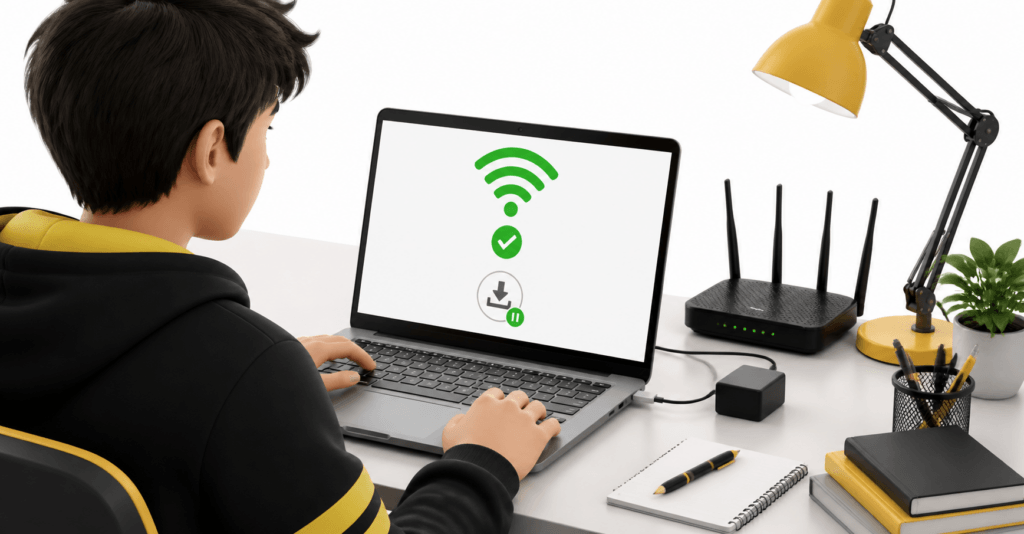
Your connection must stay stable for the complete mock.
Do not focus only on a high speed number. A fast connection that disconnects every few minutes is not useful.
Before the mock:
- Sit near the Wi-Fi router when possible.
- Ask others to pause large downloads.
- Stop cloud backup and software downloads.
- Avoid changing networks during the test.
- Keep a backup connection ready if your home internet often fails.
Open a few normal web pages and play a short online video. Check that pages load without stopping.
If the internet is unstable, do not start a scored mock and hope it becomes better.
Fix the connection or wait until it is stable.
What Common Microphone Problems Can You Fix Quickly?
Technical problems feel large when the timer is running. Before the timer starts, most of them are simple.
The browser cannot find the microphone
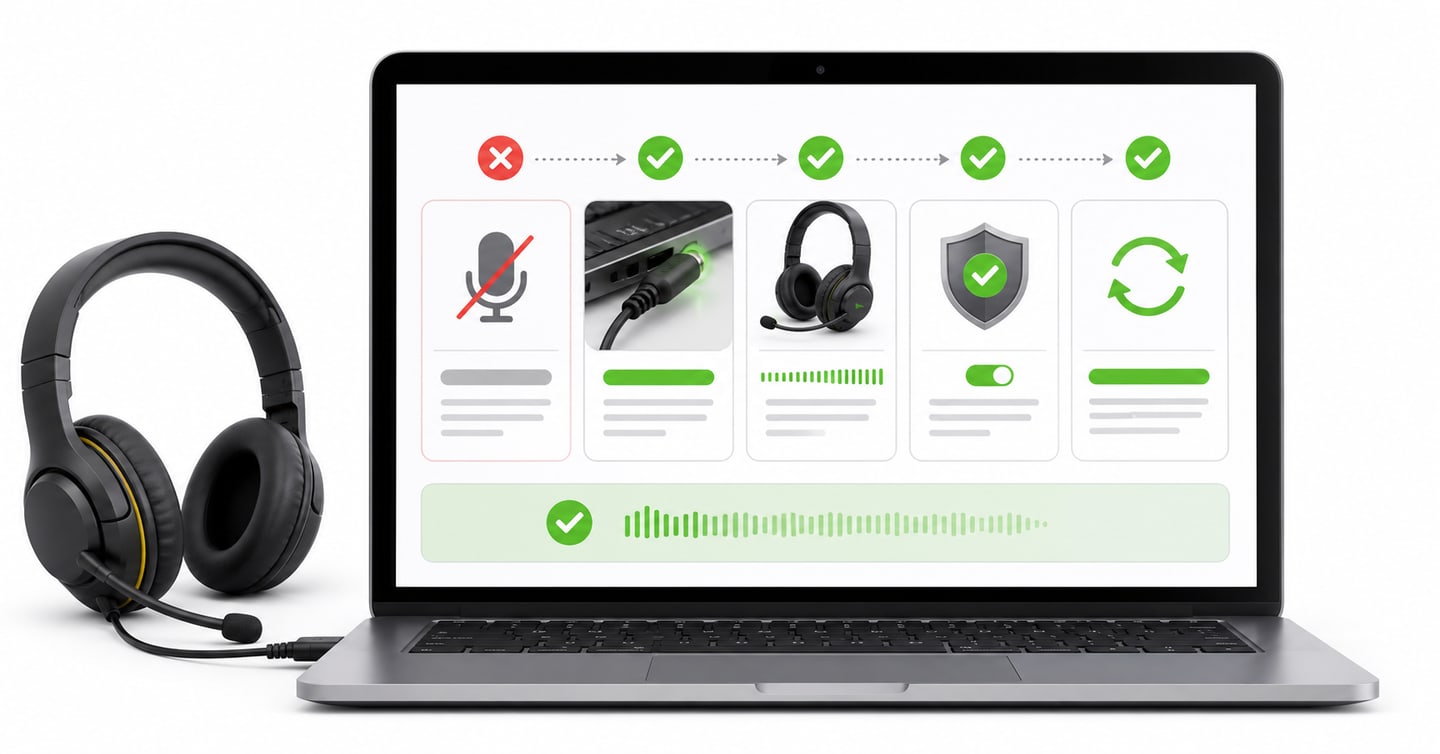
Check these points:
- Is the headset connected?
- Is the cable fully inserted?
- Is the headset muted?
- Does the computer show the microphone?
- Does the browser have permission?
- Is another app using the microphone?
Close meeting and recording apps. Reload the mock page.
If it still does not work, restart the browser. Then restart the computer.
The wrong microphone is recording
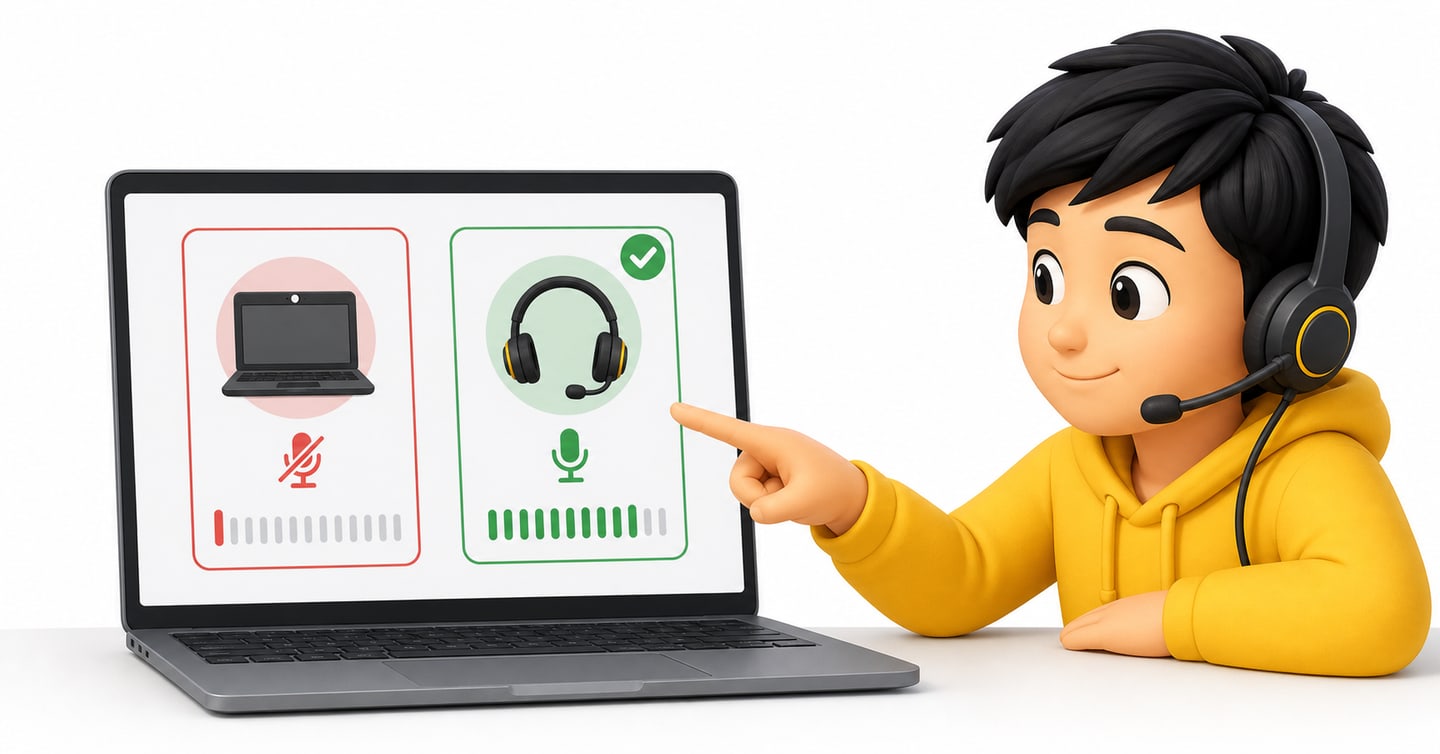
This happens when the laptop microphone remains selected after you connect a headset.
Open sound settings and select the headset microphone. Then check the browser’s microphone choice as well.
Record again.
Your voice is too quiet
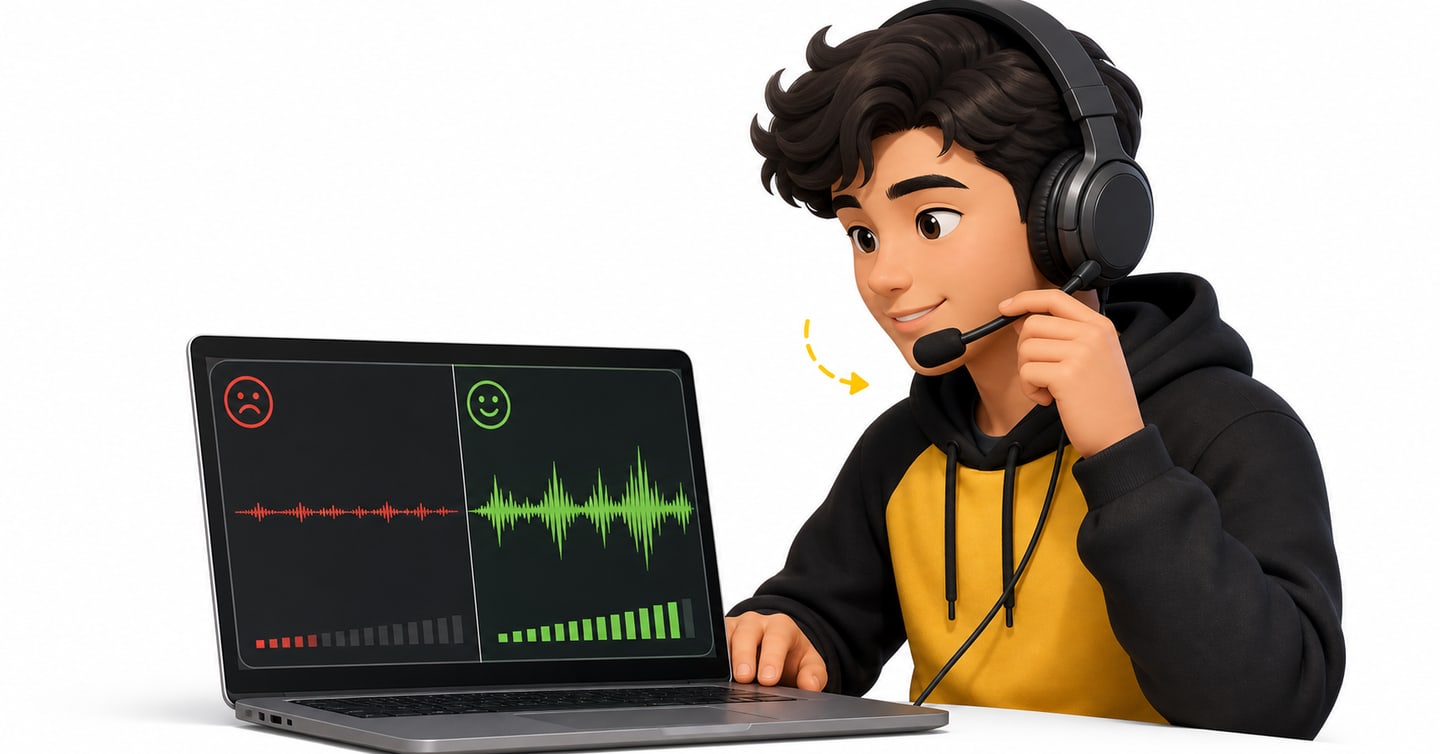
Move the headset microphone slightly closer to the side of your mouth.
Check the input volume in sound settings.
Speak at a normal clear level. Do not whisper.
Your voice sounds too loud or broken
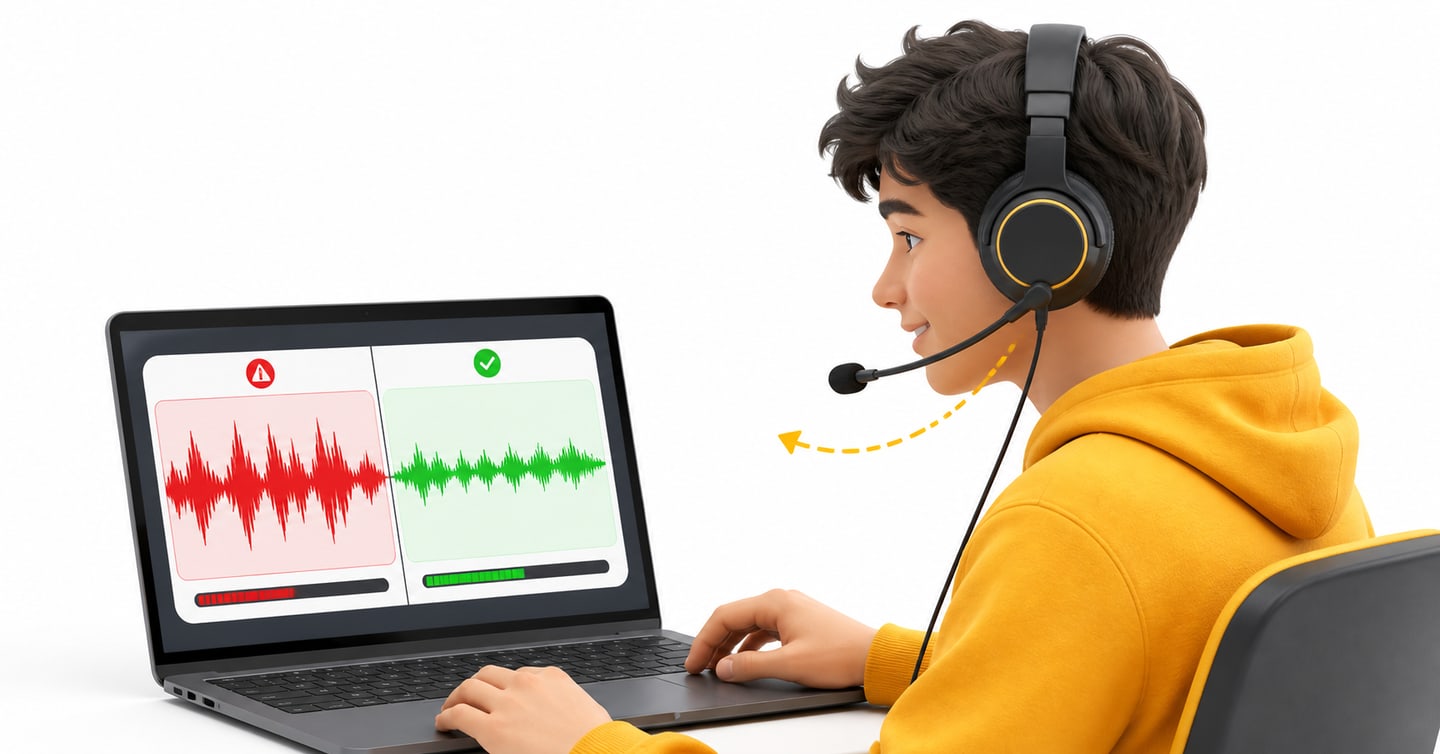
Move the microphone slightly farther away.
Lower the input level if your computer provides that control.
Do not shout into the microphone.
The recording has strong background noise
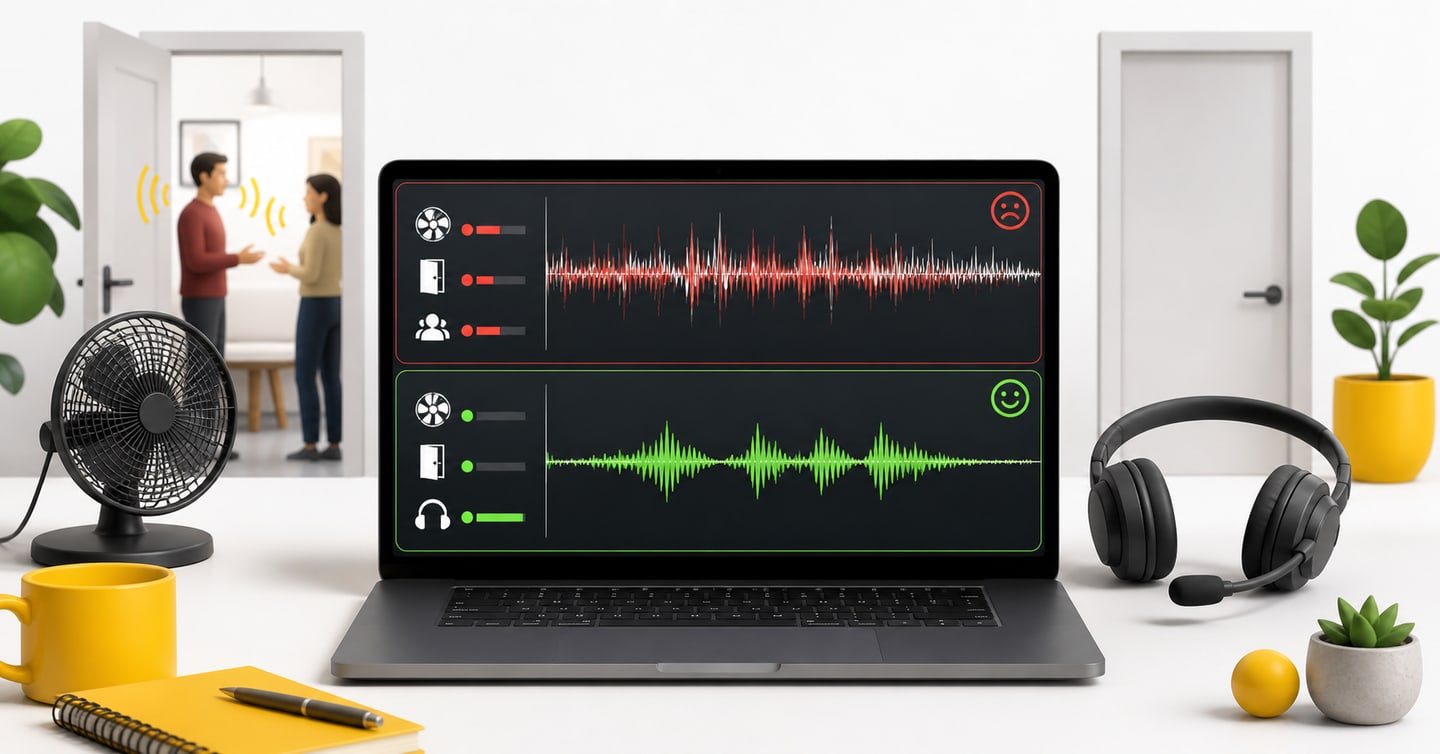
Close the door. Reduce fan noise. Move away from other people.
Check that the laptop microphone is not selected by mistake.
A headset microphone near your mouth normally captures less room noise than a laptop microphone placed farther away.
You can hear sound, but the microphone does not work
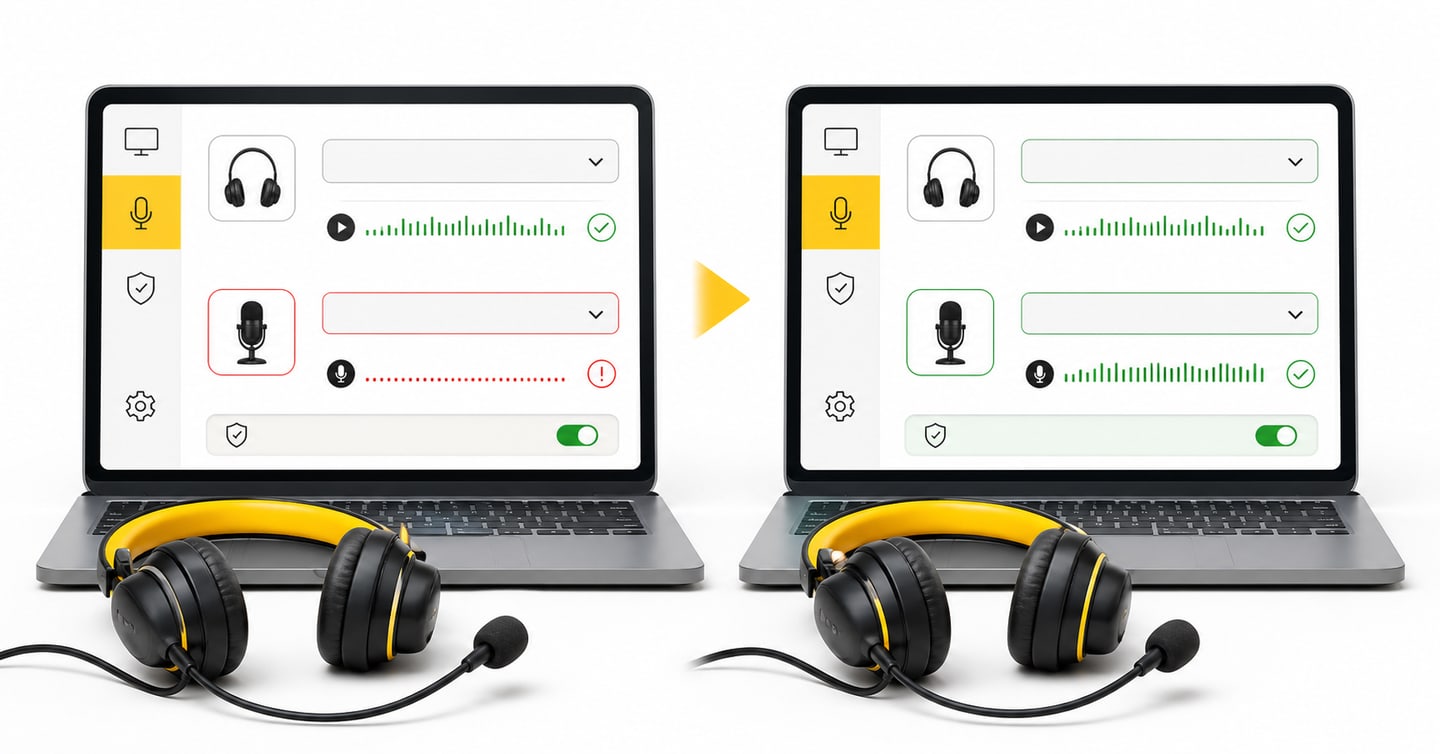
Headphone output and microphone input are separate settings.
Your headphones can work while the microphone is blocked or the wrong input is selected.
Check both settings.
The microphone works in another app but not in the mock
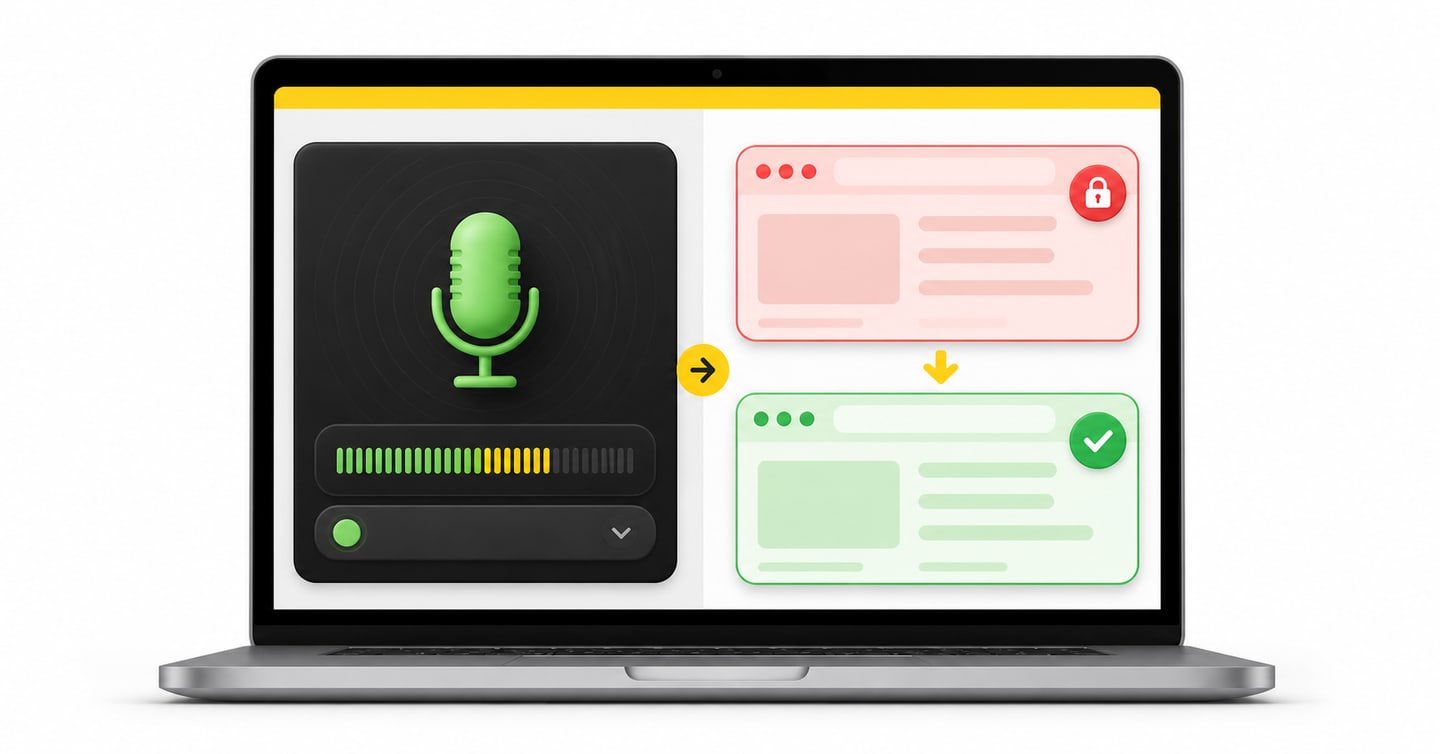
This normally points to browser permission.
Open the site information beside the web address. Set Microphone to Allow. Reload the page.
Bluetooth disconnects
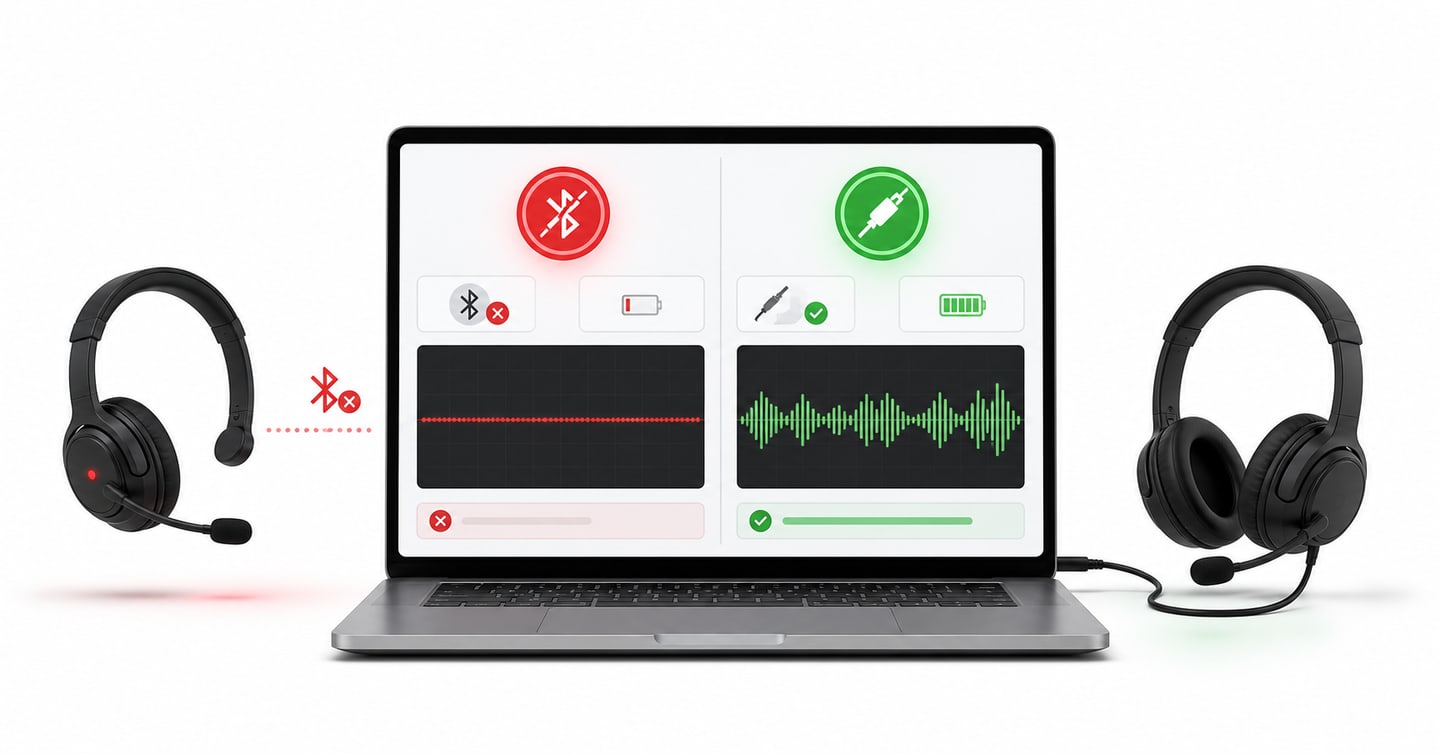
Reconnect it, then test a longer recording.
For a scored mock, move to a wired headset if one is available. A cable removes the battery and wireless connection from the problem.
What Should You Avoid During a Scored Mock?
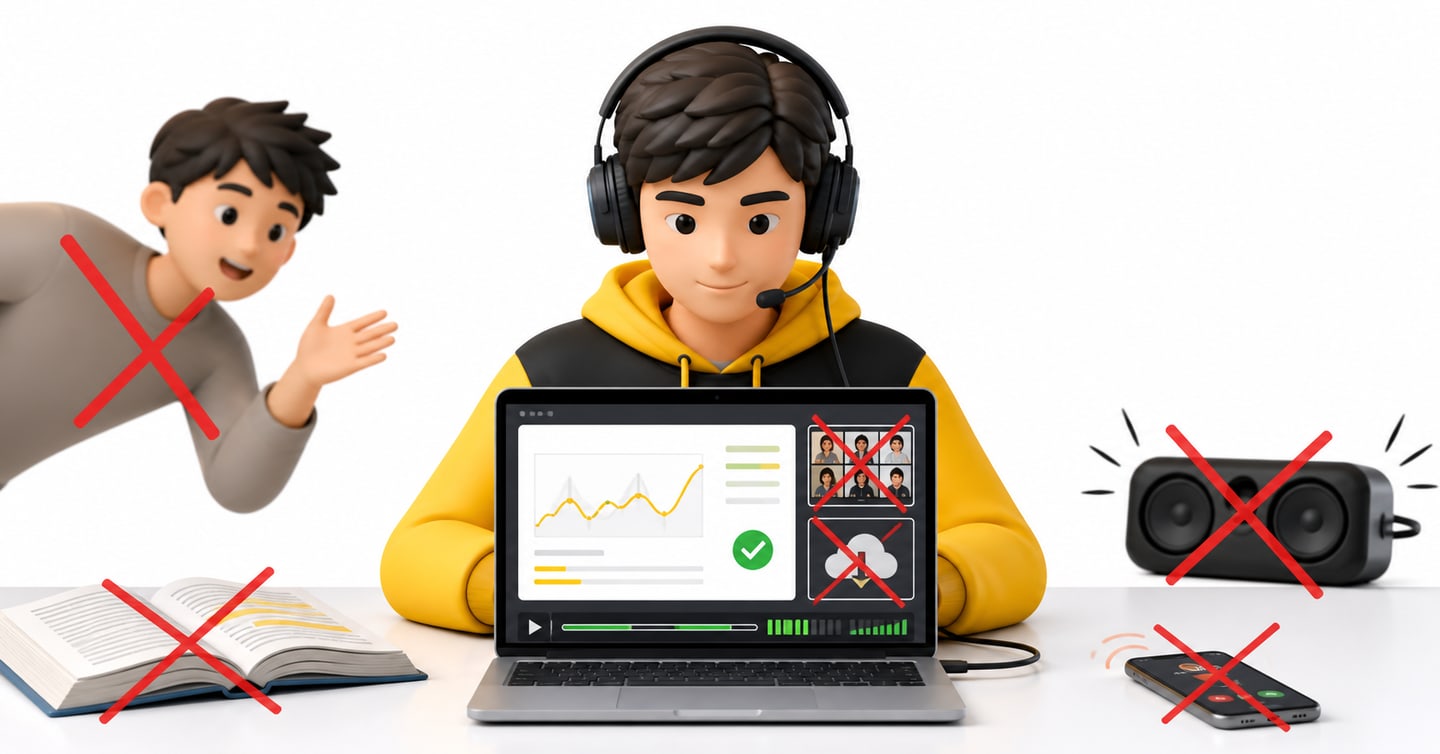
Avoid these setup mistakes:
- Starting without playing back a test recording.
- Using a phone for the full mock.
- Keeping the microphone on mute.
- Using laptop speakers instead of headphones.
- Changing the microphone during the test.
- Moving the headset microphone for every answer.
- Taking calls during the mock.
- Running a video meeting in the background.
- Downloading large files.
- Practising in a noisy room.
- Sharing your login details with another person.
Also avoid turning the mock into an open-book practice session.
Do not pause to search for answers. Do not ask someone to check your response. Do not copy a ready-made answer template.
The setup should support honest practice.
What Should You Check Ten Minutes Before Starting?
Here is your final checklist.
Laptop
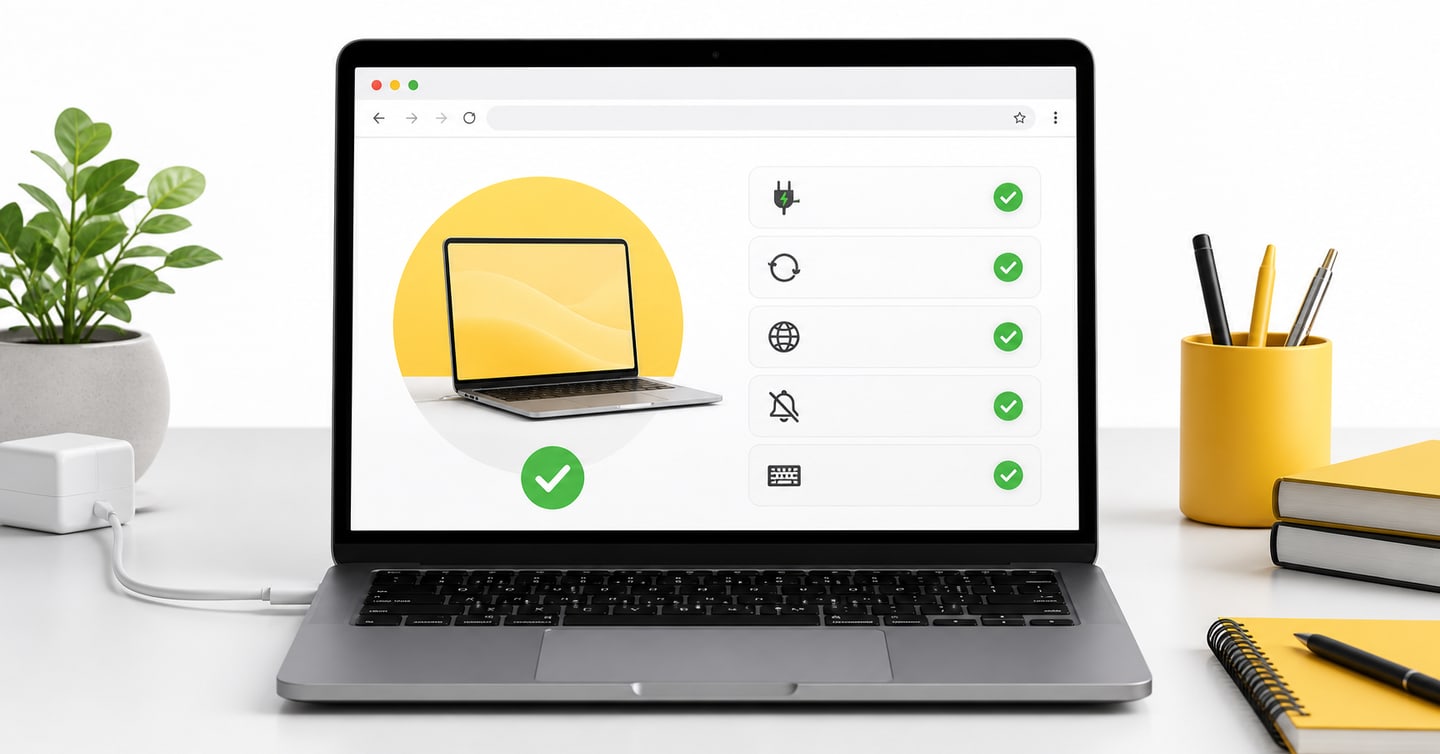
- Charger connected.
- Computer restarted.
- Unneeded apps closed.
- Notifications off.
- Keyboard working.
Internet
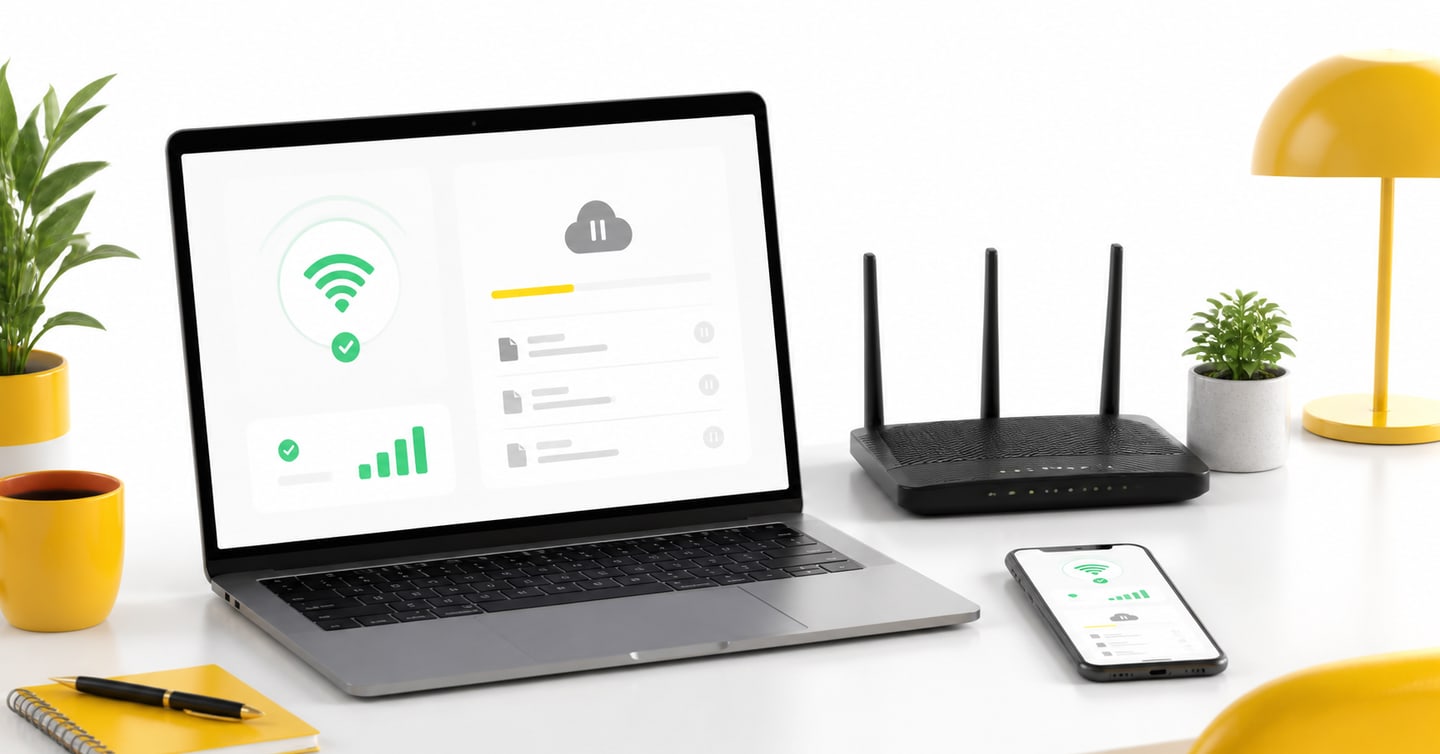
- Connection stable.
- Downloads paused.
- You are close enough to the router.
Microphone
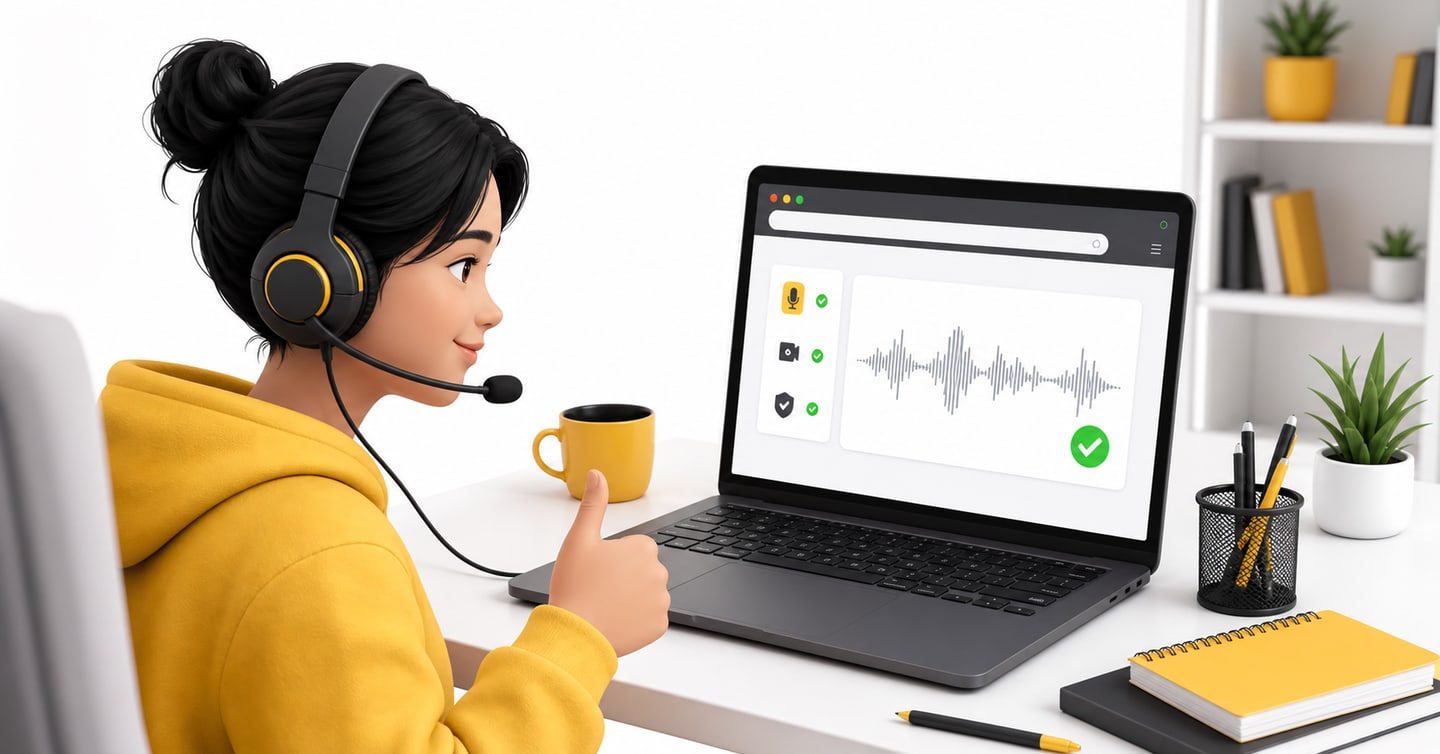
- Wired headset connected.
- Mute switch off.
- Correct input selected.
- Browser permission allowed.
- Microphone beside your mouth.
- Test sentence recorded clearly.
Headphones
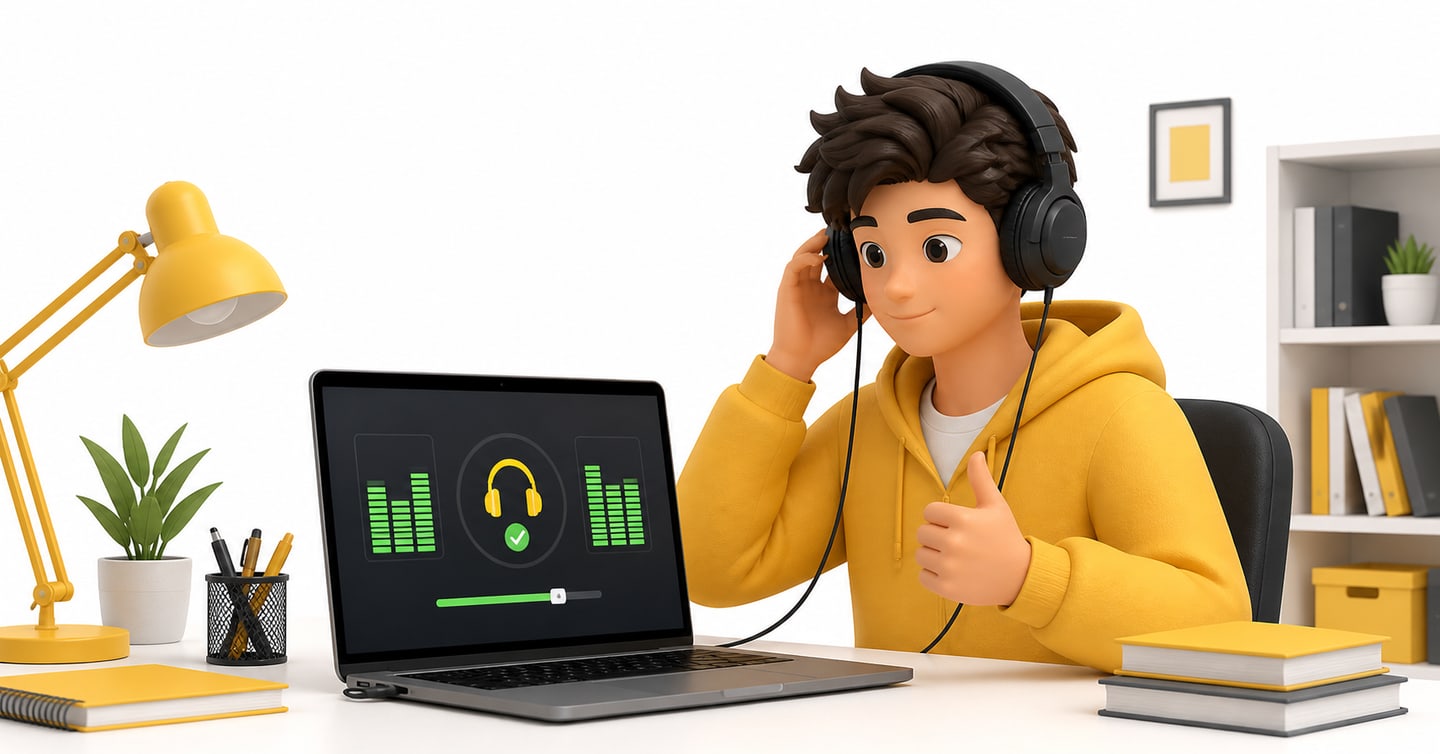
- Correct output selected.
- Audio working in both ears.
- Volume clear and comfortable.
Room
- Door closed.
- Phone silent.
- Background noise reduced.
- Enough free time for the full mock.
Mock-test account
- Access link ready.
- Username ready.
- Password ready.
- Correct unused mock selected.
If every item is ready, start.
If one important item is not ready, fix it first. Five minutes of checking is better than losing a complete scored attempt to a silent microphone.
How Do You Get PTENOTE Mock-Test Access?
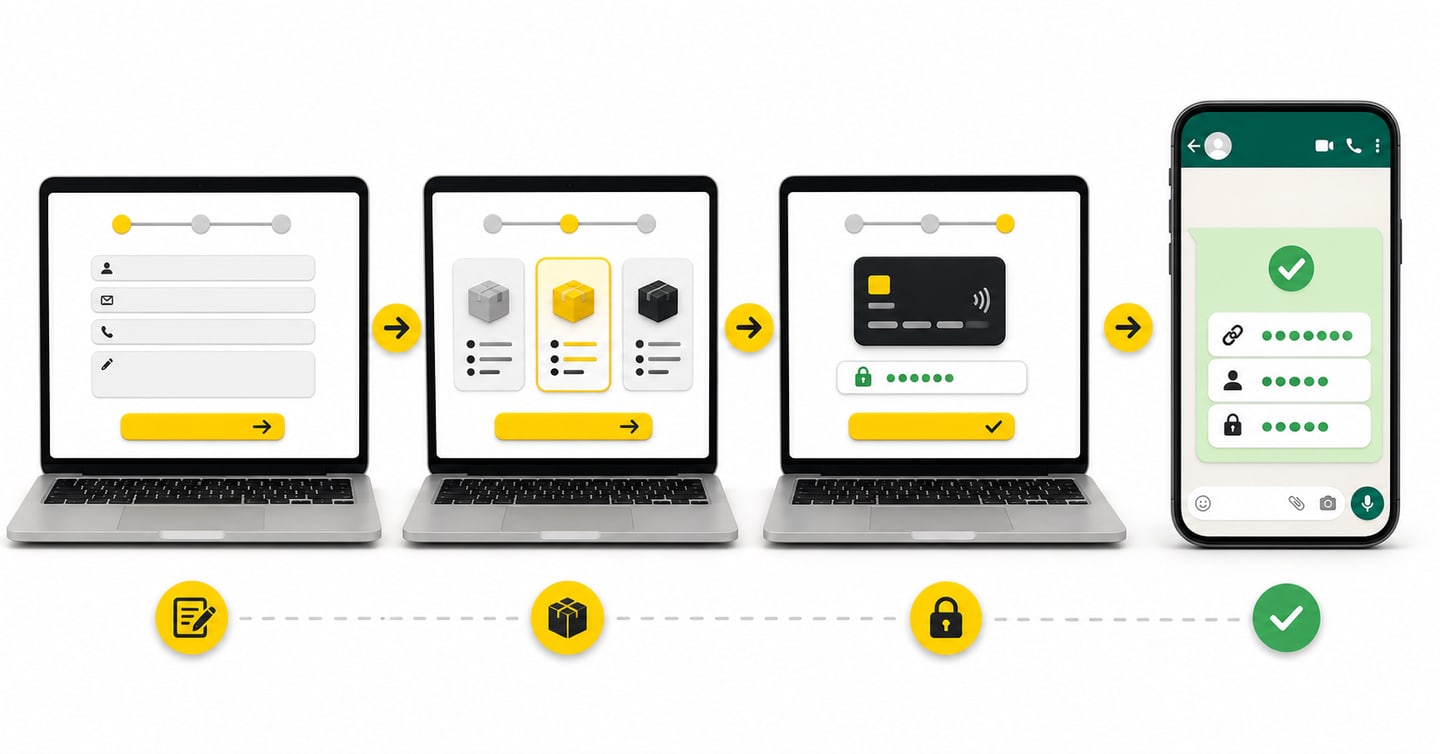
If you do not have access yet, the process is simple.
- Open our PTE Mock Tests page.
- Enter your name, mobile number and email address.
- Submit the form.
- Review the current mock-test packages on the pricing page.
- Select the package that fits your study period.
- Complete the payment.
- Receive the access link, username and password through WhatsApp.
Our current standalone packages provide the same 50 scored mock tests with different access periods. Package names, prices, features, test count and validity can change. Check the live package before paying.
You can also receive 50 free scored PTE mock tests with an eligible PTE exam-booking package or PTE voucher purchase. Check the exact package details and mock-test validity before buying.
Once your access arrives, keep the username and password private.
Then return to the setup checklist above before choosing your first unused mock.
How Should You Use the Score After the Setup Works?
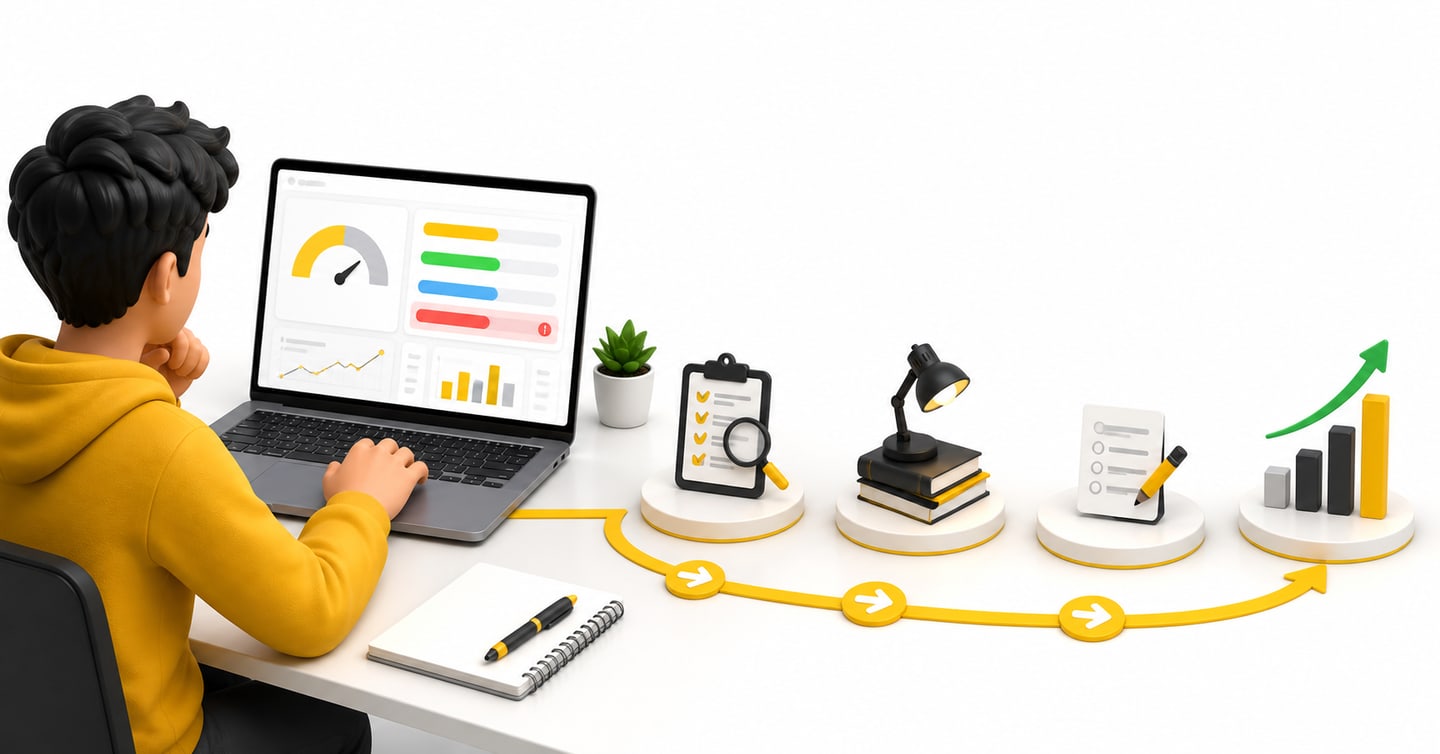
A clear recording gives the scoring system better input. It does not make the score official.
Our AI-scored mock result is preparation feedback. It helps you see where your current performance needs work. It is not an official Pearson score and cannot promise your exam-day result.
After the mock:
- Open the scorecard.
- Check the overall result.
- Review Speaking, Writing, Reading and Listening.
- Find the weakest area.
- Practise that area.
- Use a fresh unused mock to measure your progress.
Do not take another full mock only because the first score disappointed you.
Check whether the setup affected the attempt.
Was the microphone clear? Did the internet stop? Could you hear every listening task? Did you stay in one sitting?
If the setup was good, use the score as feedback.
If our platform related technical problem affected the attempt, contact us with your registered details and a clear description of what happened. Do not hide the technical issue and treat the score as a fair measure of your English.
Frequently Asked Questions
Can I take a PTE mock test on my phone?
Use a desktop or laptop for a full scored mock. A computer gives you the screen, keyboard and audio setup needed for realistic practice.
Which operating systems support PTENOTE mock tests?
You can access our mock tests on Windows, macOS and Linux. Use a stable computer, updated browser and working audio setup.
Do I need an expensive headset?
No. Use a comfortable wired headset with a working microphone. Clear and stable audio matters more than the brand or price.
Are Bluetooth headphones good for a scored PTE mock?
A wired headset is the safer choice. Bluetooth can disconnect, change the selected microphone or stop recording during a scored attempt.
Can I use my laptop’s built-in microphone?
You can test it, but it can record more room, fan and keyboard noise. Use a wired headset microphone when one is available.
Where should I place the headset microphone?
Keep it beside your mouth, slightly below or to the side of your lips. Do not place it directly in front of your mouth.
How do I know whether my microphone is working?
Record a full sentence and play it back. Check that every word is clear, the volume is steady and the recording does not stop.
Why does my microphone work in another app but not in the mock?
The browser or mock-test site probably does not have microphone permission. Change the site permission to Allow and reload the page.
Why is my laptop microphone recording instead of my headset?
The computer kept the old input device. Open sound settings and select the headset microphone. Check the browser’s selected microphone too.
Should I use laptop speakers or headphones?
Use headphones. They help you hear task audio clearly and prevent speaker sound from entering the microphone.
Can I change my headset during the mock?
Do not change a working audio device during the mock. Connect and test the headset before starting, then keep the same setup.
Can I retake the same PTENOTE mock if my microphone fails?
A completed mock cannot be retaken. Test the microphone before selecting an unused scored mock. Contact us if our platform related technical problem affects the attempt.
Will a clear microphone improve my PTE score?
A clear microphone helps the system receive your complete response. It does not improve your English or guarantee a score. Speak clearly and use the score as preparation feedback.
Do I receive expert feedback with the mock test?
No. Our mock tests use AI scoring and feedback. They do not include expert or human evaluation.
Where will I receive my mock-test login?
After successful payment, we send the access link, username and password through your registered WhatsApp number.
Conclusion: Set It Up Once, Then Focus on Your English
A good PTE mock-test setup is not complicated.
Use a desktop or laptop. Connect a wired headset. Place the microphone beside your mouth. Allow browser access. Record a sentence. Listen to it. Check the internet. Sit in a quiet room.
Then begin.
When those small checks are complete, the equipment can move into the background where it belongs.
You can focus on the timer, the task and your English.
Before every scored mock, use the same short routine:
Connect. Select. Allow. Record. Listen. Start.
It takes only a few minutes, and it protects the value of each unused mock in your account.
When you are ready to practise, open our PTE Mock Tests page, check the current package details and choose the access period that fits your plan.
References and Useful Resources
Use these official resources if you need more help with your mock-test setup:
- Pearson PTE scored practice-test guidance: Check Pearson’s current advice about compatible browsers, wired headsets, microphone position and scored practice tests.
- Google Chrome microphone permissions: Learn how to allow microphone access or change a blocked permission in Chrome.
- Microsoft Windows microphone setup and testing: Follow Microsoft’s steps to select, test and adjust a microphone in Windows.
- Apple macOS sound input settings: Learn how to select a microphone and adjust its input level on a Mac.
- PTENOTE PTE Mock Tests: Check our current mock-test access, package details, test count and validity before getting started.