Key Takeaway
Pearson tells students not to share their myPTE login details. That advice is clear, and your concern is valid.
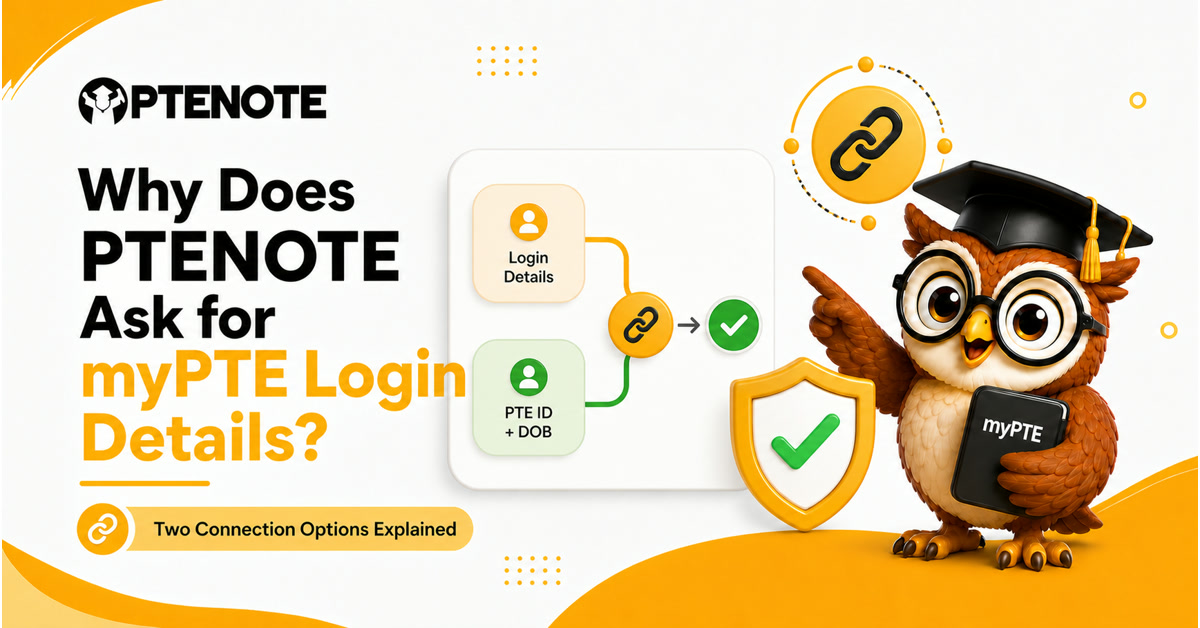
Our PTE exam-booking form gives you two account-connection options:
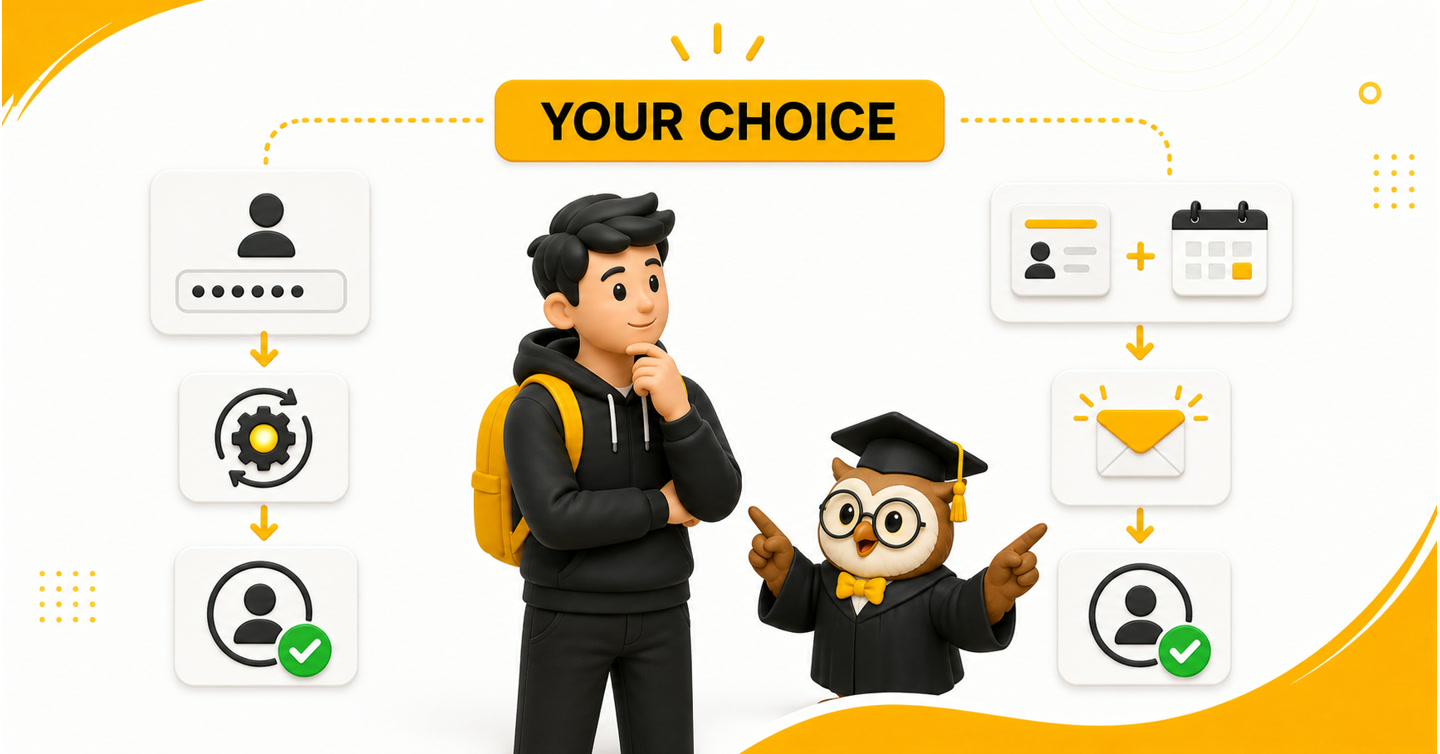
- myPTE username and password: Our automated system sends the account-connection invitation and accepts it automatically. You do not need to complete the connection step yourself.
- PTE ID and date of birth: You do not share your password. We send an invitation to your myPTE account. You accept it yourself, return to the same booking-form link and select “I have accepted the invitation.” The booking starts only after you complete both actions.
Sharing your myPTE password is therefore not required to use our exam-booking service. If you do not want to share it, choose the PTE ID and date-of-birth option.
When a student voluntarily chooses the username-and-password route, the password is stored only temporarily. It is used for the account connection and requested booking, then deleted after the booking is completed.
You are completing our booking form. The test type is ready. Your centre, date and time are ready too.
Then the form asks you to choose between myPTE username and password or PTE ID and date of birth.
You remember Pearson’s warning: do not share your myPTE login details with anyone.
So you stop and ask a very fair question:
“If Pearson says not to share my password, why does your form offer that option?”
The short answer is automation.
We are an authorised Pearson PTE Partner. An existing myPTE account must be connected with our authorised-partner profile before our system can complete the requested booking. Your username and password let our system send and accept that connection invitation automatically. The PTE ID and date-of-birth route creates the same required connection without your password, but you must accept the invitation yourself and tell our system when you have done it.
The password is an optional way to remove that manual step. It is not the only way to book with us.
This article explains Pearson’s guidance, both connection routes, temporary password handling and the exact action that starts your booking. No vague reassurance. No “just trust us” paragraph wearing a security badge. You should know what each option does before choosing it.
What does Pearson say about sharing myPTE login details?

Pearson’s current guidance says an authorised agent can book through the PTE Partners Portal, which is separate from a student’s personal myPTE account. It also tells students not to share their myPTE login details.
We should not hide that statement or twist it into something else.
Pearson’s warning protects students from unknown people and fraudulent booking offers. A person who gets your login details can try to enter the account connected to your bookings, receipts and results. Pearson therefore gives one simple rule that is easy for every student to follow: keep the login private.
The guidance also explains what an authorised partner should do. An authorised partner should use Pearson’s partner system, provide a booking that appears in the student’s own myPTE account and never promise a guaranteed score or changed result.
That is why checking the business matters before you pay or provide any account information.
We are an authorised Pearson PTE Partner. Our form offers login details as an optional PTENOTE automation route for accepting the connection invitation. It is not a statement that Pearson requires you to share your password. Pearson does not require that, and neither do we.
If you want to follow Pearson’s no-password-sharing instruction literally, select PTE ID and date of birth in our booking form.
Why does our booking form offer two ways to connect your account?
Your existing myPTE account must be associated with our authorised-partner profile before the requested appointment can be booked through our process.
Pearson’s partner system supports an invitation that connects an existing test-taker account with a partner. Our form gives you two ways to complete that connection.
The result is the same: your account becomes connected for the requested booking. The work needed from you is different.
What happens when you provide your myPTE username and password?

This is the fully automated route.
After you submit the booking details and approve the returned summary, our system:
- sends the account-connection invitation;
- uses the login details to accept that invitation automatically;
- connects the existing myPTE account with our authorised-partner profile; and
- continues with the requested booking.
You do not need to open myPTE, find the invitation or return to confirm that you accepted it.
This is why the form offers the username-and-password option. It removes one manual connection step and lets the booking continue in complete automatic mode.
The credentials must not be described as a tool for changing your profile, accessing your result for an unrelated reason or doing anything outside the connection and requested booking. That is not their purpose in our process.
What happens when you provide your PTE ID and date of birth?

This is the password-free route.
When you enter your PTE ID and date of birth, we use those details to send an account-connection invitation to your myPTE account. We cannot accept this invitation for you because you did not choose the automatic login route.
You must complete these actions yourself:
- Sign in to your own myPTE account.
- Find the connection invitation.
- Accept the invitation.
- Return to the same PTENOTE booking-form link.
- Select “I have accepted the invitation.”
The last action is important. Accepting the invitation inside myPTE completes Pearson’s side of the connection. Selecting the confirmation button in our form tells our system that it can check the connection and begin the booking.
If you accept the invitation but do not select “I have accepted the invitation,” the booking does not start.
If you select the button before accepting the invitation, the required connection is not complete. Follow both actions in order.
This route gives you a way to use our booking service without giving us your myPTE password. It simply asks you to complete one more part yourself.
Which myPTE connection option should you choose?

Choose according to the action you are comfortable completing.
| Point to compare | myPTE username and password | PTE ID and date of birth |
|---|---|---|
| Do you share your myPTE password? | Yes, voluntarily through our official booking form | No |
| Who sends the connection invitation? | Our system | Our system |
| Who accepts the invitation? | Our system accepts it automatically | You accept it inside myPTE |
| Must you return to the booking form after accepting? | No separate connection confirmation is needed | Yes; select “I have accepted the invitation” |
| When can booking begin? | After the automated connection and your required booking confirmation | After you accept the invitation, confirm that action in the form and complete the required booking confirmation |
| Amount of manual connection work | None | One additional manual connection step |
Choose username and password when you voluntarily want the connection invitation accepted automatically and you are comfortable using that option in our official form.
Choose PTE ID and date of birth when you do not want to share your password. Keep your myPTE account available because you must accept the invitation and confirm that acceptance before the booking begins.
One option is not a different exam. It does not create a better appointment, score or result. Both options are only different ways to connect the account needed for the same requested PTE exam booking.
Do not provide both sets of information. The booking form asks you to choose one account-information option.
What happens to your password after the booking?

If you choose the username-and-password route, your password is not stored permanently.
It is stored temporarily so our system can complete the account connection and the requested exam booking. After the booking is completed, the password is deleted.
That statement is specific. We are not claiming that you must share the password because the storage is temporary. You still have the password-free option.
Your decision remains simple:
- Use the username and password route only when you understand why the login details are requested.
- Use PTE ID and date of birth when you do not want to provide the password.
Never send your password in a public comment, social-media message, unofficial WhatsApp chat or email to an unknown person. If you choose the automatic route, enter the information only in the private booking form connected to your verified PTENOTE order.
How can you complete the booking carefully?

Account connection is only one part of the booking. Use the complete process so you know what you are approving.
- Open our PTE exam booking service.
- Enter your name, email address and mobile number.
- Submit the form and review the current booking packages.
- Select the suitable package and complete payment.
- Open the private booking-form link sent through WhatsApp.
- Select the correct PTE test type.
- Choose either myPTE username and password or PTE ID and date of birth.
- Enter the exact test centre, date and time you want.
- Select one instruction for what the system should do if that slot is unavailable.
- If you chose PTE ID and date of birth, accept the connection invitation inside myPTE. Return to the same form and select “I have accepted the invitation.”
- Review the WhatsApp summary showing Username/Email, Test Center, Location, Exam Date and Exam Time.
- Select “Details are correct” only when the displayed details are accurate.
- Wait for the completed booking confirmation.
- Sign in to your own myPTE account and check that the appointment appears correctly.
Our automated system continues only after the required actions are complete. The password-free route does not begin while the connection invitation is waiting for you.
A visible test slot is also not reserved merely because you entered it in the form. The appointment becomes yours after the booking is completed and officially confirmed.
Before paying, check the name saved in your myPTE account. It must match the Passport ID you will use on exam day. Our system uses the candidate name already stored in myPTE; it does not replace that name during booking.
For a complete explanation of payment, booking details, slot handling, review and confirmation, read our step-by-step PTE exam-booking guide.
How do you check that a PTE booking service is genuine?

Do not judge a booking offer only by whether somebody asks for a password. Look at the complete business and booking trail.
Check that:
- the agent is an authorised Pearson PTE Partner;
- payment goes to the same verified business providing the service;
- you receive a proper payment record and GST invoice;
- the business has a public identity, website, office and support details;
- nobody promises a guaranteed score, a result without taking the test or the power to change a result;
- the final appointment appears in your own myPTE account; and
- the centre, date and time match the booking you approved.

PTENOTE is operated by Sedani Digital Pvt Ltd. We have a public office in Ahmedabad, accept payments through our website and provide a GST invoice. Our automated process completes the booking, while real support is available when needed.
Pearson warns students about sellers who use fraudulent or disputed payment methods. A booking can appear at first and still face cancellation or account action later if the payment is fraudulent. This is why the verified business, payment record and official myPTE confirmation must remain connected.
If an offer feels unclear, do not hurry because somebody says a slot will disappear in the next thirty seconds. Verify the partner and ask questions first.
Frequently Asked Questions
Does PTENOTE require my myPTE password?
No. You can provide your PTE ID and date of birth instead. You must then accept the connection invitation inside myPTE, return to the same booking form and select “I have accepted the invitation.”
Why is the username-and-password option available?
It allows our automated system to send and accept the account-connection invitation automatically. This removes the manual invitation step and lets the connection run in fully automatic mode.
Is the myPTE password stored permanently?
No. When a student chooses that route, the password is stored temporarily for the account connection and requested booking. It is deleted after the booking is completed.
What if I accept the invitation but forget to select “I have accepted the invitation”?
The booking does not start. Return to the same booking-form link and select the button after accepting the invitation in myPTE.
Can I select the confirmation button before accepting the invitation?
No. Accept the invitation inside myPTE first. Then return to our form and confirm that you completed the action.
Does the PTE ID option make the booking less genuine?
No. Both routes connect the same existing myPTE account for the requested booking. The PTE ID route simply asks you to accept the invitation yourself.
Can an authorised PTE Partner change my score?
No. Pearson says no agent can manipulate or alter your PTE result or Score Report. Be cautious of anyone who promises a guaranteed score or offers a result without you taking the test.
How can I verify the completed appointment?
Sign in to your own myPTE account and check the booking on the dashboard. Confirm that the test centre, date and time match the details you approved.
Should I share my password through WhatsApp?
Do not send it in a normal WhatsApp message. If you voluntarily choose the automatic route, enter the details only in the private booking form sent through the verified PTENOTE order journey. If you do not want to share the password, use PTE ID and date of birth.
Conclusion
Pearson says not to share your myPTE login details. We do not hide that advice, and our booking service does not make password sharing compulsory.
Our form offers the username-and-password option for one clear reason: it lets the automated system accept the account-connection invitation without asking you to complete that step.
If you prefer not to share your password, choose PTE ID and date of birth. Accept the invitation in myPTE, return to the booking form and select “I have accepted the invitation.” The booking begins only after those actions are complete.
Understand both routes, choose the one you are comfortable with and verify the final appointment in your own myPTE account. That is the honest answer to a reasonable security question.